
Why Is My PNG File So Large? How to Make It Smaller
A PNG is large for one of five specific, checkable reasons. Here is how to figure out which one applies to your file and fix it.

Quick answer
Your PNG is big because of one of these five issues: it has more colors than the picture actually uses; there is a transparency channel with fuzzy or complex edges; the pixels are larger than necessary based on how it will be displayed; it was exported by software that didn’t optimize the export; or, it is a photograph that never should have been a PNG in the first place. Figure out which of these is your issue.
A simple icon export comes out at 800KB. A screenshot for a support ticket is somehow 4MB. You didn't do anything unusual, you just saved a PNG the normal way, and it's enormous. This isn't random. PNG gets blamed for being "just a large format," but the real answer is almost always one specific, identifiable thing about that particular file, not a general property of PNG itself.
PNG Is Lossless by Design, and That's the Starting Point
Every PNG is compressed losslessly: a filtering stage combined with DEFLATE, the universal algorithm behind zip files. Lossless compression means that all pixels remain exactly how they were when they were added into the file: no approximations, no omissions in the name of compression.
This can be truly useful for certain content and truly costly for others and it is the distance between these two types of content that accounts for overlarge PNGs. A flat image with few colors, which contains no changes from one pixel to another, will be compressed easily by DEFLATE. Photographs, on the contrary, have no two similar pixels, each pixel is different from others, because of lighting and texture. Understanding this starting point makes the following five causes clear and reasonable.
Reason 1: Wrong Color Depth for the Content
This is the single most common cause of an oversized PNG that nobody thinks to check. PNG can store color in a few different depths, and most export tools default to the richest one regardless of what the image actually needs.
A 24-bit truecolor PNG stores a full 8 bits each for red, green, and blue per pixel, roughly 16.7 million possible colors. An 8-bit indexed PNG (often called PNG-8) instead builds a palette of up to 256 colors and has each pixel simply point to a palette entry. For a photograph, truecolor is necessary, since 256 colors produces visible banding in smooth gradients. For a logo, icon, or flat-color screenshot that genuinely only uses a few dozen distinct colors, truecolor is pure waste: the file is storing full RGB precision for content that never needed more than a small palette. An indexed PNG of the same simple graphic is typically about half the size of its truecolor equivalent, sometimes considerably more, purely because fewer unique colors compress far better under DEFLATE.
There isn't a simple field anywhere that just tells you "this file is truecolor" versus "this file is indexed," since that value lives inside PNG's own internal header rather than in the EXIF-style metadata most tools surface. The practical way to check is behavioral instead: run the file through the compressor and look at the percentage saved. A large drop on a simple, flat-color graphic is itself the evidence that it was sitting at a richer color depth than it actually needed.
Reason 2: Transparency and Soft Edges
Adding an alpha channel for transparency pushes a file to 32-bit (truecolor plus an 8-bit alpha value per pixel), and how expensive that is depends entirely on what the transparency actually looks like. A logo with a hard, binary cutout, fully opaque or fully invisible, compresses reasonably well, since there's not much variation in the alpha channel itself. A soft drop shadow, a feathered edge, or a glow that fades gradually to transparent is a different story. PNG stores that alpha channel losslessly too, so every subtle step of a gradual fade gets encoded with the same precision as the color data, and that gradual complexity is exactly what drives file size up on product cutouts and UI mockups with soft shadows.
Reason 3: Pixel Dimensions Bigger Than Where It's Displayed
File size scales directly with pixel count, and this is the cause people overlook most often because it has nothing to do with compression settings at all. A screenshot captured at a Retina or high-DPI display's native resolution is frequently two to four times more pixels than it needs if the image only ever gets shown at a smaller size on a page or in a document. Compressing that file harder doesn't fix the underlying problem, since the excess pixel data is still there, just encoded more efficiently.
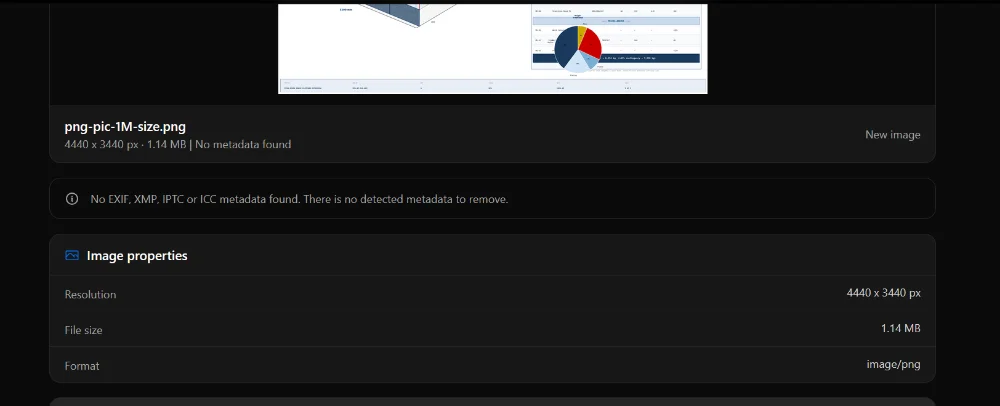
Check the actual pixel dimensions with image info, which reads resolution and file size directly regardless of what metadata the file carries. If the number is larger than where the image is actually displayed, resize it to the real display dimensions before worrying about compression settings at all.
Reason 4: An Export Tool That Didn't Optimize the Output
Design software and screenshot tools frequently write PNG files using default encoder settings that prioritize speed over file size, leaving real savings on the table with zero change to how the image looks. This is a separate problem from color depth: even a correctly indexed PNG can be encoded inefficiently if the tool that produced it didn't bother optimizing filter choices and DEFLATE parameters.
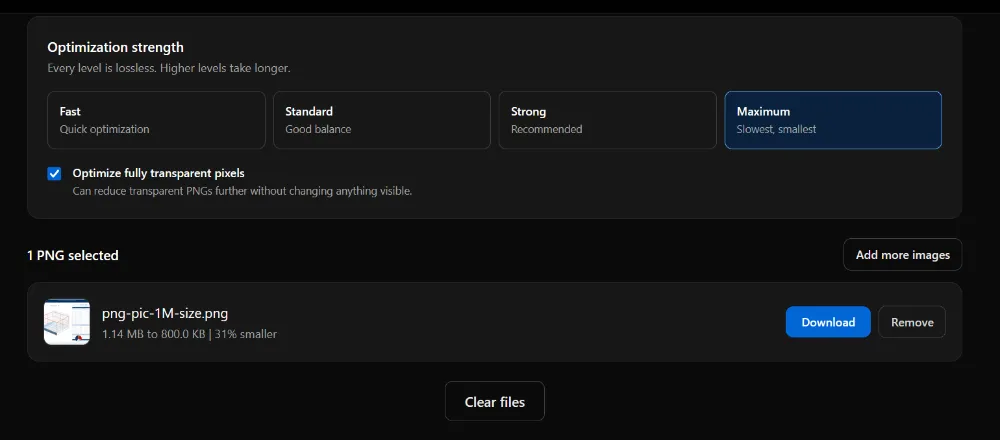
The PNG compressor re-encodes the same pixel data more efficiently using OxiPNG, typically saving 15 to 25% with zero visible change, sometimes more depending on how inefficient the original export was. It's lossless start to finish, so this is worth running on every PNG regardless of what else you find wrong with the file, since it never makes things worse and the tool keeps the original whenever optimization wouldn't help.
Reason 5: It's a Photograph That Should Never Have Been a PNG
This is the reason with the biggest single impact, and it's simple to explain: PNG's lossless approach is fundamentally the wrong tool for photographic content. A 3MB phone photo saved as PNG can easily be five to ten times larger than the identical photo saved as JPEG or WebP at visually indistinguishable quality, because lossless encoding has almost nothing to compress in a photograph's natural pixel variation. If the file in question is a photo rather than a graphic, screenshot, or logo, no amount of PNG-specific optimization closes that gap. The fix is converting away from PNG entirely, not optimizing within it.
How to Diagnose Your Specific File
Rather than guessing which of the five reasons applies, work through them in order. Open the file with image info first and check the pixel dimensions against where the image is actually displayed, that's a direct, reliable answer either way, and it's the easiest one to rule out.
From there, look at the content itself rather than a metadata field. If it's a simple graphic, logo, or flat-color screenshot, run it through the PNG compressor and check the percentage saved, a large reduction confirms color depth or inefficient encoding was the culprit. If it's a product shot or UI element with a soft shadow or feathered transparency, that complexity is likely just an inherent cost of the effect rather than something to fix. If the content is genuinely photographic, stop looking for a PNG-specific fix and convert format instead.
Quick Decision Table
| What you're looking at | Most likely cause | What to do |
|---|---|---|
| Simple logo or icon, unexpectedly large | Wrong color depth (truecolor instead of indexed) | PNG compressor |
| Product photo with a soft shadow | Complex alpha channel transparency | PNG compressor, or accept the size if transparency quality matters more |
| Screenshot at Retina resolution | Oversized pixel dimensions | Resize first, then compress |
| Any PNG that "feels" too big with no clear reason | Inefficient export encoding | PNG compressor, lossless, no downside |
| Actual photograph saved as PNG | Wrong format entirely | PNG to WebP or PNG to JPG |
What NOT to Do
Don't assume compressing harder always helps. A PNG compressor working losslessly has a ceiling, since it can't discard data the way a lossy format can. If you've already run lossless optimization and the file is still too big, the answer is almost always one of the other four reasons, not a more aggressive lossless pass.
Don't convert a transparent PNG to JPEG to solve a size problem. JPEG has no transparency channel at all, and any transparent area becomes solid white in the output, which breaks the image the moment it's placed anywhere other than a matching white background. If transparency needs to survive and the format can change, WebP or AVIF are the correct targets, not JPEG.
Don't resize an image up to make it "look less blurry" when the real problem was that it started too small. Upscaling adds pixels through interpolation, not real detail, and it increases file size while making the actual sharpness worse, not better.
Frequently Asked Questions
Can I check a PNG's color depth directly? Not through a labeled field on most tools, including this one, since that value lives in PNG's own internal header rather than the EXIF-style metadata typically surfaced. The practical check is behavioral: run the file through the PNG compressor and look at the percentage saved. A large reduction on a simple graphic is strong evidence it was stored at a richer color depth than it needed.
Will reducing color depth make my logo look worse? Not if the logo genuinely uses a limited color palette to begin with, which most logos, icons, and flat-color graphics do. Reducing depth only causes visible loss when the actual content has more distinct colors or smoother gradients than the target palette can represent, which is exactly why photographs are the wrong content type for this kind of reduction.
Why is my PNG bigger after I edited it in an image editor? Many editors re-save with default export settings on every save, which can silently increase file size compared to an already-optimized original, especially if an edit added new colors, anti-aliasing, or a layer effect that increased pixel-level complexity. Running the result back through the PNG compressor after editing catches this.
Is there a size where PNG stops making sense entirely? There's no fixed number, but the practical signal is content type rather than size. If a file is large because it's photographic, no PNG-specific technique fixes that, and converting format is the actual solution rather than continuing to optimize within PNG.
Does this apply to animated PNG (APNG) files too? APNG stores multiple full frames inside one file, so its size scales with frame count on top of everything covered here, which usually makes it considerably larger than a single-frame PNG of the same visual complexity. If file size matters for animated content, a video-based or WebP animation format is usually a better fit than APNG.
Check Your Own File
Start with image info to confirm your pixel dimensions match where the image is actually displayed, that's the fastest of the five reasons to rule in or out. From there, the PNG compressor handles the lossless fixes and tells you how much room there was to begin with, resize handles oversized dimensions, and PNG to WebP or PNG to JPG handle the case where PNG was never the right format to begin with. For the fuller breakdown of every method and when to use each one, how to make a PNG file smaller covers the complete decision guide.
Related articles
How to Make a PNG File Smaller (Without Losing Quality)
Lossless optimization saves 15 to 25%. Converting to WebP, AVIF, or JPG saves far more. Here is which method fits your situation.
ReadWhy Is My Image File So Large and How to Fix It
Your phone takes a photo and it's already 8MB. We break down exactly what makes image files large across every format.
ReadPNG vs WebP: Which Image Format is Better for Web Performance in 2026?
WebP lossless compresses 23 to 42% better than PNG according to Google's own published study, with the same transparency and zero pixel loss.
Read