
Why Is My Image File So Large and How to Fix It
Your phone takes a photo. You try to upload it and get rejected. Here is exactly what is making that file so heavy and the fastest ways to fix it.

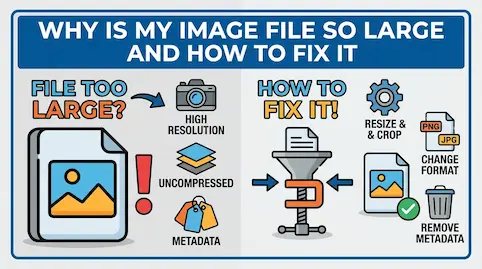
Your phone takes a photo. You try to upload or email it, and the service reports that the file is too large.
So you sit there wondering: how is one picture this big?
It's a fair question, and the answer is actually pretty interesting once you understand what your device is doing every time you press the shutter.
The fastest fixes are usually to reduce unnecessary pixel dimensions, choose a format suited to the image, and then compress to the service's stated limit. The sections below explain how to choose among those options.
What an Image File Actually Contains
An image file contains encoded pixel data plus supporting information such as dimensions, color profiles, and metadata. Metadata size varies widely, but pixel count, format, quality settings, and image detail usually have a much larger effect on the total.
The visible part of the image is made up of pixels. Each pixel stores color information as binary data. A 12-megapixel image contains about 12 million pixels. At 24 bits per pixel, the uncompressed pixel data alone is about 36MB, or roughly 34MiB, before accounting for file structure or compression.
That's before compression, before any format decisions, before anything else.
The supporting information can include EXIF metadata such as capture time, GPS coordinates when location recording is enabled, camera model, focal length, ISO, shutter speed, and sometimes a device identifier. These fields are not part of the visible pixels.
The image info tool shows the readable metadata fields it can detect, including whether GPS fields are present.
The Format Is Doing More Work Than You Think
So the uncompressed pixel data might be about 36MB while an encoded phone photo is only a few megabytes. What happened to the rest?
Compression happened. And the format you save in determines how much compression is applied and what it costs you in quality.
JPEG, a common camera and sharing format, uses lossy compression. It converts image blocks into frequency information, simplifies details that are less visually noticeable, and encodes the result efficiently. Some source data is discarded. Repeated editing and saving can add visible block, ringing, or smearing artifacts, especially at low quality settings.
This is a deliberate tradeoff. At the intended viewing size, a carefully encoded JPEG can look very close to the source. Aggressive settings make artifacts easier to see, especially around edges, text, and fine texture.
PNG uses lossless compression, so encoding and decoding does not introduce generation loss into unchanged pixel values. Editing still changes pixels, of course. PNG is useful for transparency, logos, screenshots, line art, and images with sharp edges or text.
The tradeoff is file size. A PNG of a photograph is often much larger than a visually similar JPEG because the encoder cannot discard image detail. The difference depends on the image and encoder settings.
Many BMP files store pixel data with little or no compression. A simple screenshot can therefore use several megabytes. The exact size depends on the BMP variant, dimensions, and color depth.
The format choice alone can mean the difference between a 500KB file and a 5MB file of the same image.
The Resolution Multiplier Nobody Talks About
Resolution is not only about print quality. It directly determines the amount of uncompressed pixel data and strongly influences the encoded file size.
A photo at 4000 x 3000 pixels contains 12 million pixels. Doubling both dimensions to 8000 x 6000 creates 48 million pixels. That is four times the uncompressed pixel data, while the encoded file-size change depends on the format, settings, and image detail.
Some phones and cameras offer capture modes well above 12 megapixels. Photos from those modes can reach tens of megabytes depending on the dimensions, scene detail, format, and compression settings.
High source resolution is useful for cropping, zooming, large prints, and detailed editing. For ordinary web display or email, the receiving layout often renders far fewer pixels than the camera captured, so a smaller derivative can look the same at its displayed size.
For many web and email uses, a source around 1600 to 2000 pixels wide is a practical starting point. Follow the service's dimensions when it publishes them. Resizing from 4000 pixels wide to 2000 while preserving the aspect ratio removes 75 percent of the pixels, although the encoded file-size reduction will vary.
You can do this quickly with the resize image tool which lets you set a specific pixel width and downloads the result without touching the original.
What the Format Doesn't Tell You: Scene Complexity
Two photos from the same camera in the same format can differ several-fold in file size. A simple scene with large smooth areas is easier to encode than dense foliage, texture, or noise.
This is because compression works by finding patterns and repetition. A white wall has enormous amounts of repetition. Every pixel in a large section is basically the same color. Compression algorithms can describe this very efficiently: "this whole region is white, move on." Dense foliage with varied textures, overlapping leaves, and complex lighting has almost no repetition at the pixel level. The compressor has to describe every tiny area differently.
JPEG artifacts are especially noticeable around text and sharp edges. PNG or lossless WebP is often a better choice for screenshots and line art, while JPEG and lossy WebP usually suit photographs.
If photos taken with similar settings have different file sizes, scene complexity and image noise are likely factors. An open sky is easier to encode than a dense market scene with varied textures and colors.
How the Format Choice Compounds the Problem
Saving the same photograph as PNG can produce a much larger file than JPEG because PNG preserves every pixel value. Re-saving either format with different dimensions, metadata, or encoder settings can change the result again.
At ordinary viewing sizes, the larger PNG may not provide a visible benefit over a well-encoded JPEG, even though it transfers and stores more data.
This is a common pattern with design files, screenshots, and anything saved out of photo editing software. The default is sometimes PNG "for quality" when JPEG would have been indistinguishable and a quarter of the size. Or the default is an uncompressed TIFF because the software is designed for archival work, not sharing.
Checking what format you're actually saving in before exporting anything is worth doing. It's not obvious, and the default depends heavily on which software you're using.
Why iPhone Photos Are Especially Confusing
iPhone users deal with a specific wrinkle that catches a lot of people off guard.
Since iOS 11, compatible iPhones can save photos using the HEIF standard, commonly with the HEIC extension. HEIC can encode a photo more efficiently than JPEG at similar visual quality, although the actual difference depends on the image and settings.
The tradeoff is compatibility. HEIC support varies by operating system, application, browser, and upload service. A recipient may need compatible software, and a form may reject HEIC when it is not in the accepted-format list.
If a recipient or service does not support HEIC, converting to a listed format such as JPEG can remove that compatibility barrier. The converted file may be larger or smaller depending on its dimensions and quality setting.
The HEIC to JPG converter handles this in the browser with no upload involved. JPEG conversion is a lossy re-encode, so quality and file size can change. Keep the original HEIC when you may need to edit or export it again.
The Modern Fix: WebP and AVIF
JPEG has been the standard since 1992. The web has changed pretty significantly since then.
Google developed WebP for efficient web delivery. Controlled encoder comparisons have shown smaller WebP files than JPEG at similar visual quality, but the saving for a specific image depends on the source, encoder, quality setting, and measurement method.
AVIF uses compression technology from the AV1 ecosystem and can outperform older formats for many photographs. It is not automatically the smallest or best-looking option for every image, so compare output quality and encoding cost for your workflow.
The same 1600 x 900 source can produce very different file sizes as JPEG, WebP, or AVIF. Encoder quality numbers are not equivalent across formats, so compare the rendered result at the size visitors will see rather than matching the numeric setting.
Current major browsers support WebP and AVIF, but audience, embedded viewers, content-management systems, and downstream tools can have different requirements. Use responsive delivery or a fallback when compatibility matters.
Format choice matters most for websites and web apps. For personal use and simple file sharing, JPEG remains practical. If you manage a slow site, measure the image transfer size and rendering path before deciding whether images are the main bottleneck. The guide to how image compression affects Core Web Vitals and SEO covers the performance angle in more detail.
The Fix, Practically Speaking
You now know the reasons. Here's what to actually do about it.
If your photos are just too big to upload or email: The first move is usually to resize the dimensions, not just compress harder. A photo taken at 4032 x 3024 pixels resized to 1920 x 1440 will be dramatically smaller because you've removed three-quarters of the pixel data. The compression then has less work to do and the resulting file is genuinely more manageable.
If a form says "file must be under 200KB," use a tool that targets that upper limit. The compress to 200KB and compress to 100KB tools aim for output at or below the selected limit.
If an iPhone file is not compatible with the receiving service: Check the accepted formats and convert HEIC to JPG when JPEG is listed.
If you saved a photograph as a large PNG: Compare JPEG or lossy WebP at the displayed size. PNG remains useful for transparency, screenshots, logos, icons, and line art. A 20MB PNG is ten times the size of a 2MB JPEG, but judge whether the smaller file preserves the detail your use case needs.
If images are a measured website bottleneck: Resize oversized sources, generate responsive variants, and compare WebP or AVIF with the current format. The effect on page weight and loading metrics depends on how much image data the page transfers and which image becomes the LCP element.
The WebP converter handles individual files. If you're working with a batch, the main compression tool on the homepage handles multiple files at once.
One Thing Worth Knowing About Metadata
Removing EXIF data can reduce file size and limit accidental disclosure. The saving varies from file to file, but metadata can include GPS coordinates, device details, capture time, and camera settings.
ImgTweak's generated image output removes EXIF metadata during browser-based processing. Other tools have different policies, so check before assuming that a conversion removed location data.
For anyone sharing photos publicly, this matters more than most people realize. The full breakdown of what's in your EXIF data and why it matters is worth a read if you're not already in the habit of stripping it before sharing.
Related articles
Lossy vs Lossless Compression: Understanding When to Use Each
The key differences between lossy and lossless compression methods and which approach is best for your specific image optimization needs.
ReadHow to Reduce Image File Size Without Photoshop
You do not need Photoshop to shrink image files. Six practical methods that work without installing anything or paying for software.
ReadHow to Compress Image to 100KB (Step-by-Step)
Learn how to reduce a photo to 100KB or less when a portal states that file-size limit, while protecting useful image quality.
Read