
How to Extract Text From an Image or Screenshot
OCR accuracy depends almost entirely on the source image. Here is how resolution, skew and contrast actually affect the result, and how to extract clean text with nothing uploaded.
Quick answer
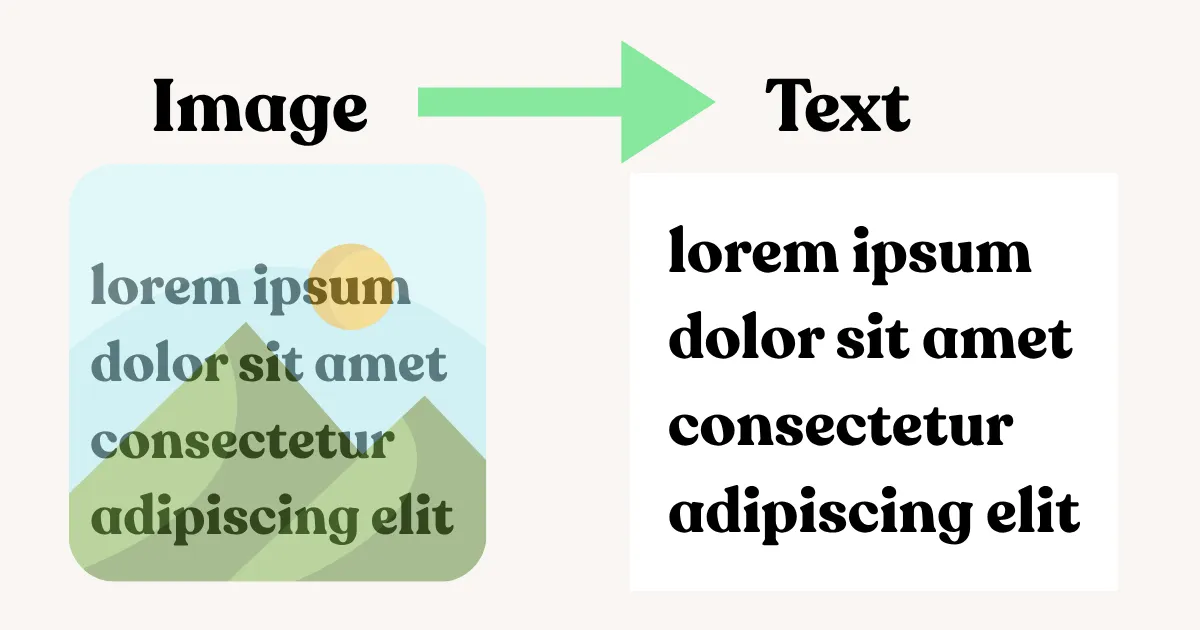
OCR is short for Optical Character Recognition, which means it changes letters in an image to text that can be selected, copied and edited. Accuracy of this process relies mostly on the quality of the image itself, meaning if it is sharp, straight and has good contrast. The image to text tool runs this entirely in your browser, so the screenshot never leaves your device.
The text is locked up in a screenshot, an image of a printed document, or a receipt from which you need to extract some data but you cannot copy it because it's just a picture without any text at all. Manual typing helps but you may waste your precious time for something that could have been done automatically. OCR software was invented precisely to deal with such situations by recognizing the shape of letters on an image and converting them to editable text.
There's no magic behind OCR, however, and being aware of its advantages and disadvantages will help you get perfect results or suffer from numerous mistakes you will need to correct manually.
What OCR Actually Does
Optical character recognition analyzes the pixels in an image, looks for shapes that match known letterforms, and outputs the text it finds. The image to text tool runs on Tesseract, an open source OCR engine originally developed at HP in the 1980s and later maintained and significantly improved by Google, now widely regarded as one of the most accurate open source recognition engines available. The browser version, Tesseract.js, runs the same recognition model entirely client-side using WebAssembly, so your screenshot is read locally rather than uploaded anywhere for processing.
It’s much bigger than one might think. A service where your image is uploaded to the server for OCR implies that the picture of your identification documents, a personal document, or a screenshot of a confidential chat appears somewhere else for a brief period. This doesn’t happen with client-side OCR.
Step-by-Step: Extracting Text From a Screenshot
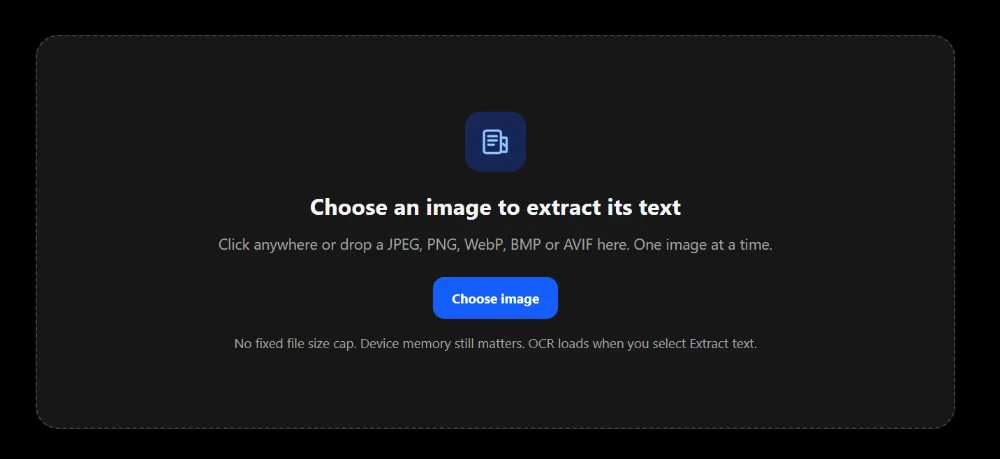
- Go to the image to text tool and drop your image in, or click to browse. JPEG, PNG, WebP, BMP and AVIF are all accepted directly. If your file is HEIC, TIFF or a PDF page, convert it to one of those formats first, since this tool works on a single raster image, not a document container.
-
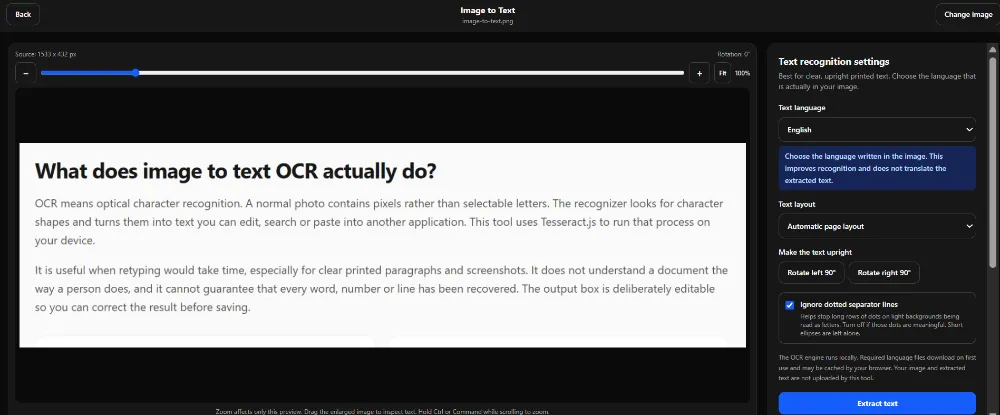
Once your image loads, the editor opens with your source image on one side and the recognition settings on the other. Choose the language actually printed in the image first, since this loads the correct recognition model rather than trying to guess.
-
Pick a layout setting next. Automatic page layout works well for most document-style images, One block of text suits a single continuous paragraph, and Scattered text or labels handles words spread across a picture rather than arranged in neat lines.
-
If the text is sideways, rotate it upright before extracting, since a skewed image is one of the most common causes of a poor result.
-
Select Extract text. The first run loads the OCR engine and the language data, which takes a few extra seconds compared to any extraction after that.
-
Once it finishes, compare the result against your source image, correct anything that looks wrong directly in the text box, then copy the text or download it as a plain text file.
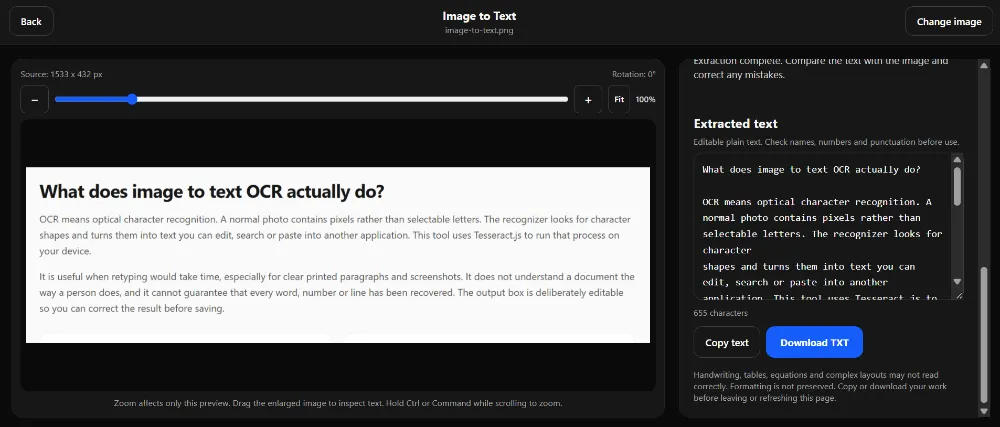
Why Some Images OCR Cleanly and Others Don't
Resolution matters more than most people expect. Tesseract's own documentation and independent testing both point to roughly 300 dots per inch as the resolution where recognition accuracy is reliably strong. Below that, particularly under 150 dpi, character shapes start losing the fine detail the engine needs to distinguish similar letters. A screenshot taken at native screen resolution is usually fine for this, but a photo of a printed page taken from too far away, then not cropped closer, effectively has lower text resolution than the file's overall megapixel count suggests.
Skew and rotation break line segmentation badly. Tesseract's documentation is specific about this: a page that's tilted even moderately can cause the engine to fail at properly splitting the image into individual lines and words before recognition even starts, which cascades into much worse accuracy than the visual tilt alone would suggest. This is exactly why the rotation control exists in the editor, and it's worth using even for what looks like a small tilt.
Contrast and noise both interfere with character detection. Tesseract identifies text by analyzing the contrast between foreground letters and background, so faded printing, low-contrast color combinations, or a busy background behind the text all reduce accuracy. Some noise gets cleaned up automatically during the engine's internal processing, but heavy noise, like a low-light photo with visible grain, isn't something the engine can fully compensate for on its own.
Fonts and text style matter more than file format. Standard printed fonts in a reasonable size recognize far more reliably than decorative lettering, very small text, or stylized typefaces. Handwriting is a separate category entirely and isn't something this kind of engine is built for, joined letters and inconsistent letterforms produce unreliable results regardless of image quality.
Cropping Beats Shrinking
If your source image is very large but the text itself is small relative to the whole frame, don't just let the tool downscale the whole thing to fit its processing limits. Crop tightly to the text region first, since a smaller image with the text taking up more of the frame preserves more usable detail than a full-frame image scaled down uniformly. The crop tool handles this in a separate step if you'd rather prepare the image before bringing it into the OCR editor, and the guide on reducing dimensions without losing quality covers the resampling side of this in more depth if the source needs resizing rather than cropping.
Choosing the Right Layout Setting
This setting genuinely changes results, not just processing speed. Automatic page layout works best when your image resembles a normal document, a paragraph or block of text with a fairly standard structure. One block of text is the right call for a single, self-contained paragraph with no columns or scattered elements, since it tells the engine not to look for a more complex page structure that isn't actually there. Scattered text or labels suits images where words are spread across the frame rather than following normal reading order, a product photo with several small labels, for instance, though the reading order in the output may not match how you'd naturally read the layout, so this setting needs a closer review pass afterward.
Proofreading: What OCR Commonly Gets Wrong
Even a clean extraction benefits from a quick check against specific, predictable failure points rather than reading the whole result cold. Similar-shaped characters are the most common source of errors: the capital letter O versus the digit 0, the lowercase L versus the digit 1, and the letter combination rn versus the letter m are all classic OCR confusions across virtually every engine, not just this one. Names, URLs, email addresses, and currency amounts deserve a specific second look, since these are exactly the kind of content where a single wrong character changes the meaning entirely, and they're also less likely to be caught by any dictionary-based correction the engine applies internally, since proper nouns and URLs often aren't real dictionary words to begin with.
Frequently Asked Questions
Does OCR work on handwriting? Not reliably. Engines like Tesseract are built and trained around printed text with consistent letterforms. Handwriting, with its joined strokes and inconsistent shapes between writers, falls outside what this kind of recognition is designed to handle well.
Why did my extraction come back empty? The most common causes are text that's too small, an image that's too blurry or noisy, a skewed orientation, or the wrong language selected for what's actually printed in the image. An empty result means the engine couldn't confidently identify character shapes, not necessarily that no text exists in the image.
Can OCR preserve the original formatting, like tables or columns? No. The output is plain text without fonts, colors, or table structure. Column and scattered layouts in particular can come out in an order that doesn't match how the content should actually be read, which is why reviewing the result against the source image matters more for complex layouts than for a simple paragraph.
Is my screenshot uploaded anywhere during this process? No. Recognition runs locally in your browser using WebAssembly. The only network requests involved are downloading the OCR engine and the language data files themselves, neither of which contains your image. Here's how to verify that kind of claim yourself on any tool, not just this one.
Why does the first extraction take longer than the next one? The OCR engine and the selected language's recognition data both need to load before the first extraction can run. Depending on your browser's caching behavior, a later extraction using the same language may skip re-downloading that data, though this isn't guaranteed across every browser and session.
Try It Yourself
The image to text tool handles screenshots, scanned pages and photographed text entirely in your browser, with 12 selectable languages and an editable result you can correct before copying or downloading. For anything that needs cropping or resizing first to get the clearest possible source, crop image and resize image both run the same way, locally, with nothing uploaded.
Related articles
Are Online Image Compressors Safe? Browser-Based vs Server-Based Explained
Compressing an image online can mean two very different things happening to your file. Here is how to verify any tool yourself in under a minute.
ReadBrowser-Based Image Compression: Why It's Better Than Online Upload Tools
Discover why browser-based image compression is faster, more private, and more secure than traditional upload tools.
ReadHow to Reduce Image Dimensions Without Losing Quality
Downscaling removes data rather than inventing it, so it should not cost quality. Here is why images still end up looking soft.
Read