
Are Online Image Compressors Safe? Browser-Based vs Server-Based Explained
Compressing an image online can mean two very different things happening to your file. Here is how to tell which one you're actually using, and how to verify it yourself.

How we verified this
Everything below about how a compressor actually processes your file can be checked yourself in under a minute, using your browser's built-in DevTools Network panel and a simple airplane-mode test. We walk through exactly how to run that check further down, using the ImgTweak compressor as the live example.
You drop a photo of your passport into a free online compressor to shrink it under a portal's 100KB limit. It works. The file downloads. You move on. What you probably didn't think about is where that photo went in the meantime, who has a copy of it right now, and how long it's going to sit on someone else's server before anyone deletes it, if anyone ever does.
That's the actual question behind "is it safe to compress images online." Not whether the tool does what it says on the tin, most of them genuinely do compress your image correctly. The real question is what happens to your file during the process, and that answer depends entirely on one architectural choice most people never think to check.
The One Question That Actually Matters
Image tools may process files on a server, locally in the browser, or through a hybrid workflow. That architectural distinction affects file exposure, but it is only one part of assessing whether a service is appropriate for sensitive content.
Here's the part that trips people up. Both kinds of tools can look identical. Same drag-and-drop box, same progress bar, same download button at the end. Nothing in the interface tells you which one you're actually using unless the tool explicitly says so, or unless you go check for yourself.
How Server-Side Compressors Actually Work
A server-side compressor takes your file, uploads it to a remote server somewhere (you usually have no idea which country, which company, or which cloud provider), runs the compression there, and sends the result back down to you. This is how a large share of the well-known compression tools work, since it's genuinely easier to build and doesn't depend on the visitor's device having enough processing power.
The privacy tradeoff is what happens in between. Your file leaves your device and is processed on infrastructure you do not control. HTTPS can protect it in transit, and a responsible provider may also encrypt or avoid persisting it on disk. Review the provider's actual retention and security documentation rather than assuming either good or bad handling.
How Browser-Based Compressors Work Instead
A browser-based (client-side) compressor does the entire job locally, using either the HTML canvas API or WebAssembly, a technology that lets genuinely fast, near-native compression code run directly inside your browser tab. Your file is decoded, compressed, and re-encoded entirely on your own device. Nothing about the actual image data ever crosses the network.
This is the architecture the entire ImgTweak toolset is built on, including the main compressor, the JPEG compressor, and the WebP compressor. It's also why every one of these tools keeps working if you disconnect from the internet after the page has loaded, which is exactly the test covered further down.
Server-Side vs Browser-Based, Side by Side
| Server-side | Browser-based | |
|---|---|---|
| Where processing happens | Remote server | Your own device |
| File leaves your device | Yes | No |
| Depends on internet connection | Yes, throughout | Only to load the page |
| Data retention to trust | Yes, whatever the provider states | Nothing to retain |
| Risk if the provider is breached | Your file may have been exposed | Not applicable |
| Suitable for sensitive documents | Only with real trust in the provider | Yes, by design |
| Speed on very large batches | Can be faster with server hardware | Limited by your own device |
The EXIF and GPS Problem Nobody Thinks About
This is the part of "is this safe" that gets skipped most often, and it has nothing to do with whether your image gets uploaded. Most photos taken on a smartphone carry EXIF metadata: the exact camera or phone model, the date and time, and if location services were on, the precise GPS coordinates of where the photo was taken.
Compression itself doesn't touch this data. Standard compression targets pixel information to shrink file size, while EXIF metadata lives in a completely separate block inside the file container. A tool can compress your photo perfectly and hand back a file that still carries your exact GPS coordinates, unless it specifically strips metadata as a separate step.
GPS metadata can reveal where a photo was recorded if the recipient receives the original metadata and knows how to inspect it. The risk depends on what the file contains, who receives it and whether the sharing service removes or preserves those fields. Check the actual file instead of relying on dramatic anecdotes or assumptions.
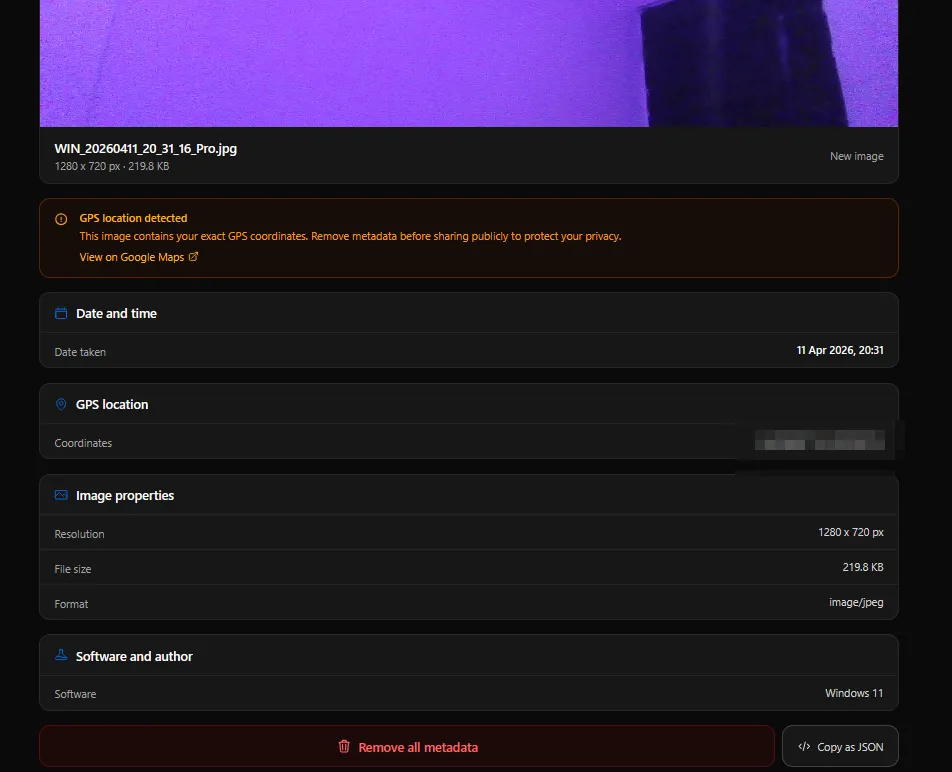
The main compressor and resize tool both strip EXIF metadata automatically as part of the encode/decode pipeline, since decoding to raw pixels and re-encoding naturally discards it. If you want to see exactly what metadata a specific file is carrying before you decide to share it anywhere, image info shows the full breakdown, and remove EXIF data strips it on its own without needing to compress or resize anything else. The full explainer on what EXIF data actually is covers the format itself in more depth.
What a "24-Hour Deletion Policy" Actually Means
Server-side tools often advertise a retention window: files deleted after 15 minutes, 24 hours, whatever the specific number is. Worth reading that claim carefully rather than treating it as a guarantee.
A stated deletion policy describes intent, not a technical impossibility of the file existing longer. It typically means a scheduled job runs periodically and removes files past a certain age, which is a reasonable practice, but it still means your file existed unencrypted on someone else's infrastructure for up to that entire window, and depending on the provider's backup practices, potentially in a backup snapshot well beyond the stated policy too. None of this makes a provider dishonest. It just means "we delete it" and "it never existed on our servers in the first place" are two very different privacy guarantees, and only the second one is what a genuinely client-side tool offers.
There's also a regulatory angle worth knowing if you're handling this for a business. Under GDPR and similar frameworks, an image carrying GPS coordinates or other identifiable information counts as personal data the moment it touches a third party's server, which means retention policies, processing agreements, and data handling practices all become compliance questions that simply don't arise when nothing ever leaves the user's own device.
How to Verify a Tool Is Actually Client-Side
Don't take a "100% private, no uploads" claim on the homepage at face value. It takes under a minute to check for yourself, and it works on any site, not just ImgTweak.
- Open your browser's DevTools (right-click anywhere on the page, choose Inspect, then click the Network tab).
- Clear the network log if there's anything already listed, then upload or drop an image into the tool as normal.
- Watch the Network panel while the compression runs. A genuinely client-side tool shows no outbound request carrying your file data, since there's nothing to send anywhere.
- For an even simpler check, load the tool's page fully, then turn on airplane mode or disconnect your wifi entirely, and try compressing an image. If it still works, nothing was ever depending on a network connection to process your file.
The offline check is useful but not conclusive by itself. A local tool may still need uncached code, while a service worker can keep parts of a site working offline. Use the Network panel to inspect processing requests, read the privacy policy and avoid unfamiliar tools for sensitive files.
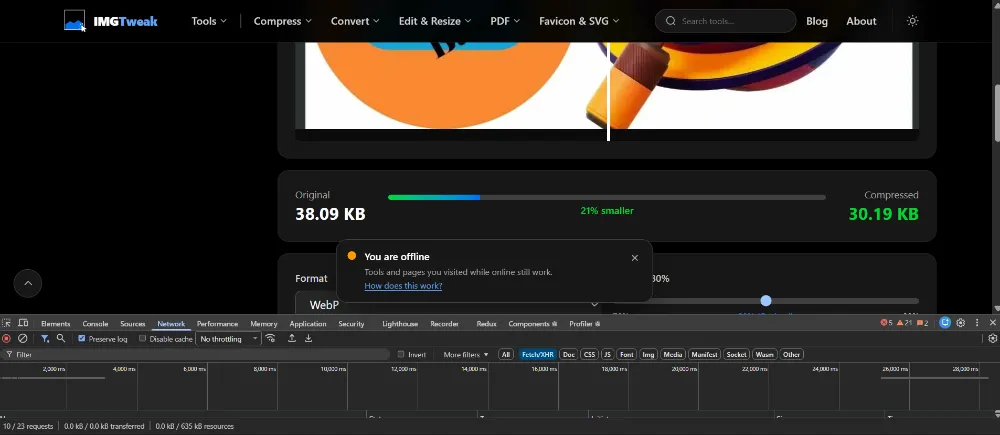
This is that exact test, run live. The browser's own offline banner is sitting in the middle of the screen confirming there's genuinely no connection, while the compressor still finished the job: a 38.09KB image dropped to 30.19KB as WebP, 21% smaller, with the before and after slider and quality control both fully working. The number that actually settles the question sits at the bottom of the DevTools panel: 0.0 kB transferred, in both directions. The request count just above it isn't zero, and that's expected rather than a problem, those are calls to the site's own service worker pulling already-downloaded interface files (icons, fonts, page chunks) out of local storage on your device rather than the network. The file you dropped in never touched either.
What NOT to Do
Don't assume a tool is private just because it looks minimal or doesn't ask you to sign up. Plenty of server-side tools have no account requirement at all and still upload every file you give them.
Don't assume compression strips metadata automatically. As covered above, that's a separate step a tool has to specifically implement, not a side effect of shrinking the file size.
Don't use an unfamiliar, unverified compressor for anything you wouldn't be comfortable emailing to a stranger, ID documents and passport photos being the clearest example. If you specifically need a compressor built around that use case, compress image for passport is designed for exactly this and runs the same client-side pipeline as every other tool on this site.
Don't assume "encrypted in transit" (HTTPS) means the same thing as "never leaves your device." HTTPS protects the file while it's traveling to the server. It says nothing about what happens to the file once it arrives there.
When Server-Side Genuinely Isn't a Problem
None of this means every server-side tool is something to avoid. If you're compressing marketing photos that are already public on your website, batch-processing stock photography, or working with images that carry no personal or sensitive information to begin with, the privacy stakes of a server-side tool are genuinely low. Server infrastructure can also outperform a visitor's own device on very large batches, which is a real, honest tradeoff in the other direction.
The distinction matters most exactly when the content is sensitive: identity documents, medical images, unreleased business material, anything with a face, a location, or a name attached that you wouldn't want existing on infrastructure outside your control, even briefly.
Frequently Asked Questions
Does HTTPS make a server-side compressor safe? HTTPS protects your file while it's traveling to the server, preventing someone from intercepting it mid-transit. It says nothing about what the server does with the file once it arrives, how long it's stored, or who else might access it there.
Can compression accidentally leak more than the image itself? Yes, through EXIF metadata specifically. A compressed file can look completely different in size and quality while still carrying the exact GPS coordinates, camera model, and timestamp of the original, since compression and metadata are handled by separate parts of the file.
Is a paid image compression tool automatically safer than a free one? Not automatically. Price has no direct relationship to architecture. A paid tool can still be server-side, and a free tool can be entirely client-side. The DevTools check above works regardless of what the tool costs.
Do browser-based tools work on mobile? Yes. WebAssembly and canvas-based processing both run in mobile browsers the same way they run on desktop, since it's the browser doing the work rather than a separate app or a server.
If a tool is client-side, does that mean it's automatically trustworthy in every other way? No. Client-side architecture solves the specific problem of your file data leaving your device. It doesn't guarantee the site itself is free of other issues like invasive tracking scripts or misleading ads. It's one genuine privacy guarantee, not a blanket endorsement of everything else on the page.
Verify It Yourself
The DevTools check above takes less time to run than reading this article did. Open the main ImgTweak compressor, pull up your Network tab, and watch what does (or doesn't) happen when you drop in an image. If you're specifically dealing with metadata, image info shows you exactly what's embedded in a file before you decide where it goes next, and the full guide to removing EXIF and GPS data covers the removal process end to end if you need to strip it from a photo you've already got. For the broader case on why client-side processing wins on speed as well as privacy, browser-based compression vs upload tools covers that comparison in more depth.
Related articles
Browser-Based Image Compression: Why It's Better Than Online Upload Tools
Discover why browser-based image compression is faster, more private, and more secure than traditional upload tools.
ReadWhat Is EXIF Data and Should You Remove It Before Sharing Photos
Every photo you take stores hidden data you never see: GPS coordinates, device model, timestamps, and more.
ReadHow to Remove EXIF Data and GPS from Photos
Every photo you share contains hidden data including GPS coordinates, camera model and timestamps. Learn how to remove it before sharing.
Read