
Does WhatsApp Remove EXIF Data From Photos? Here's What We Found After Testing
We sent the same photo through WhatsApp two different ways and checked what actually made it through. The results were not the same for both.

How we tested this
We took a single photo with known EXIF data (camera model, timestamp, GPS coordinates) and checked it with ImgTweak's own image metadata viewer before sending anything. We then sent that same photo through WhatsApp twice, once the normal way and once as a Document, downloaded both copies on the receiving end, and checked each one with the same tool again. What follows is what came through in that test. It is a reproducible example, not a guarantee for every WhatsApp version, device or quality setting.
You send a photo to a friend on WhatsApp without thinking twice about it. Most people assume whatever hidden data was attached to that photo, the exact GPS coordinates of where it was taken, the phone model, the timestamp, either survives the trip or it doesn't. The real answer is more specific than that, and it depends entirely on which button you tapped to send it, a detail that's easy to get wrong without realizing it.
What EXIF Data Actually Contains
Every photo your phone takes carries a block of hidden data alongside the pixels: EXIF metadata. This typically includes the camera or phone model, the exact date and time the photo was taken, and if location services were on, the precise latitude and longitude of where you were standing. The full breakdown of what EXIF data is covers the format itself in more depth if you want the background before continuing here.
None of this is visible when you look at the photo. It's sitting inside the file, invisible until someone runs it through a viewer that reads it out.
The Two Ways to Send a Photo on WhatsApp
This is the part most people never notice, because both options are just a tap away from each other and look similarly simple.
Sending a photo the normal way means tapping the camera or gallery icon, picking the photo, and hitting send. This is what almost everyone does by default, every time.
Sending a photo as a file means tapping the paperclip icon instead, choosing Document, and picking the same photo from your gallery. It looks like a slightly less convenient path to the same result. It isn't.
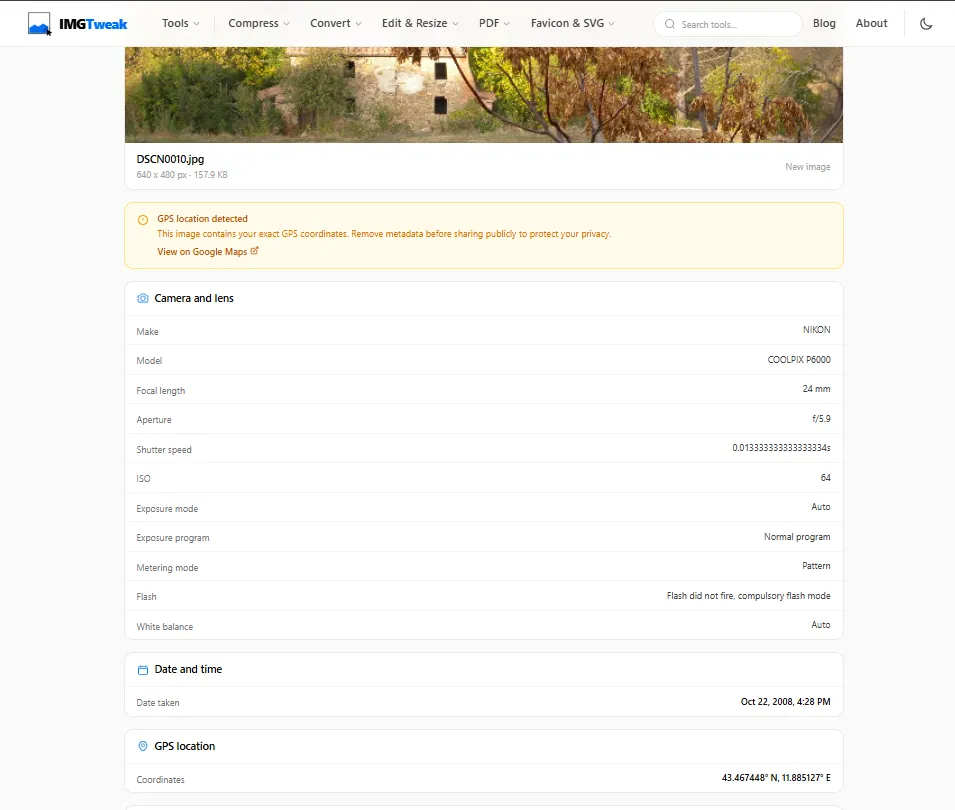
This is the photo we started with, checked before it ever touched WhatsApp. GPS coordinates, camera model, and timestamp all present and readable.
What Happened Sending It the Normal Way
After sending the photo through the regular gallery picker and downloading the received copy on the other device, we ran it back through the image info tool.
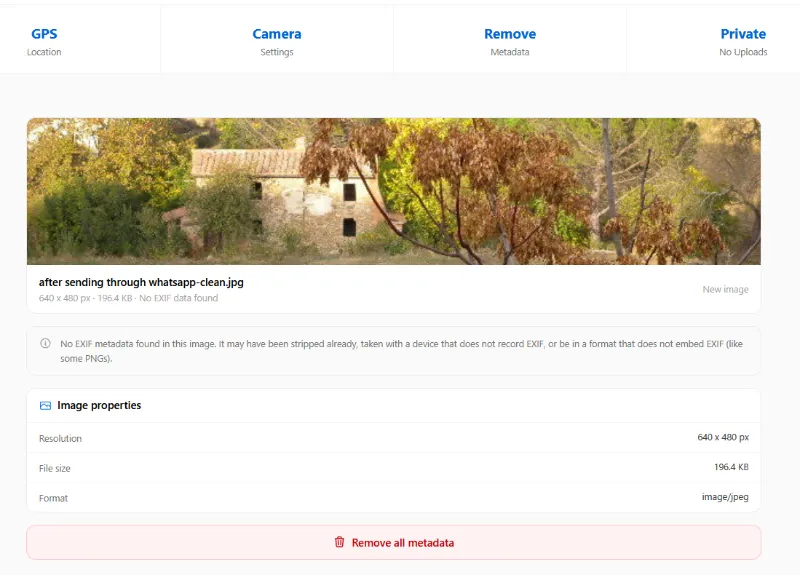
Nothing. No GPS, no camera model, no timestamp. This matches what most existing coverage of this topic reports, and our own test confirmed the same result: sending a photo the normal way on WhatsApp strips the metadata entirely.
What Happened Sending It as a Document
Same photo, same recipient, this time sent through the paperclip icon as a Document rather than a regular photo.
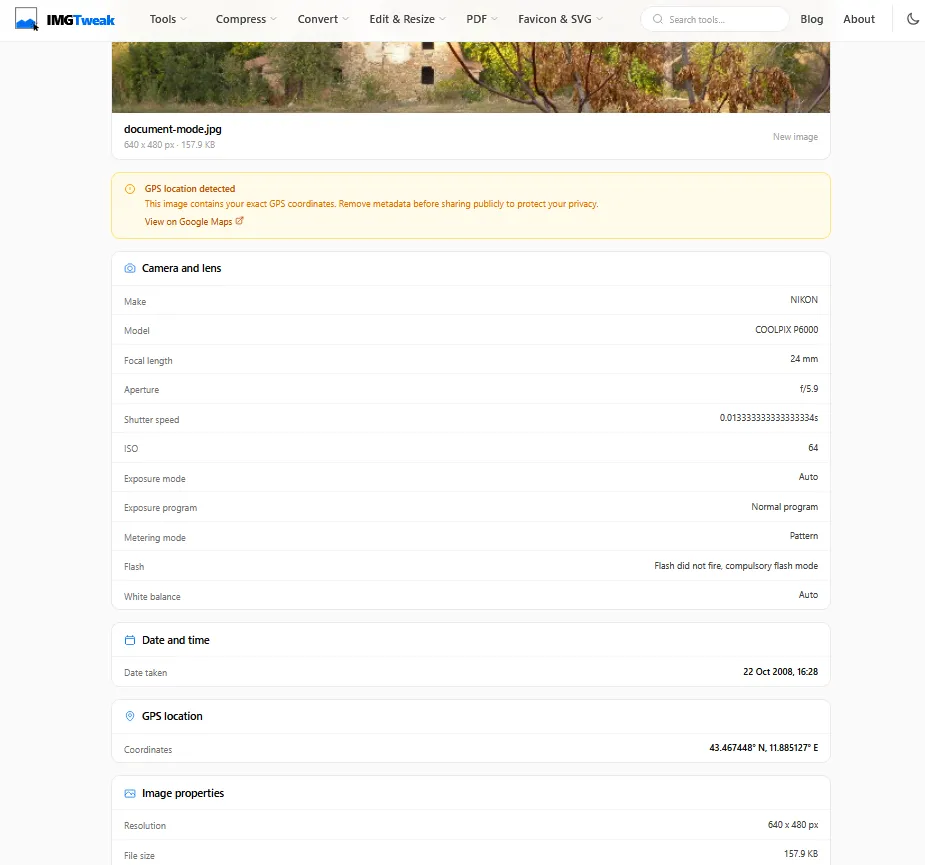
Everything survived the trip. Same GPS coordinates as the original, same camera model, same timestamp. The recipient received a file that reveals exactly where the photo was taken, down to a precise location.
Why This Happens: The Actual Mechanism
WhatsApp isn't running a dedicated privacy scrubber that specifically hunts down and deletes EXIF data. What's actually happening is a side effect of how it handles each path differently.
When you send a photo the normal way, WhatsApp decodes the image, resamples it at a lower resolution and quality to keep file sizes manageable, and builds a brand new JPEG from scratch on the way out. That rebuilt file simply never has the old EXIF block copied into it, because nothing in the recompression pipeline carries it forward. The metadata isn't found and deleted. It just never gets written into the new file in the first place.
Document mode skips all of that. There's no recompression, no rebuild, no resampling. WhatsApp transmits the exact original file, byte for byte, which is also why Document mode preserves full image quality alongside the metadata. Better quality and metadata surviving are the same underlying behavior, not two separate features.
The "HD" Toggle Sits in the Middle
WhatsApp's HD media guidance says HD photos are clearer than Standard quality photos but use more data and take longer to send. It does not promise preservation of the original file or EXIF fields. Our HD tests were less consistent, so verify the received file if metadata matters.
Why This Matters More Than It Sounds
Document mode gets used by exactly the people who have a real reason to care about photo quality: photographers sending proofs, real estate agents sharing property photos, sellers posting listing photos to a marketplace group. None of these situations usually involve the sender thinking about GPS data at all, they're thinking about resolution.
That's the actual risk. A property photo sent as a Document to a buy-and-sell group carries the exact coordinates of where it was taken, meaning a stranger with no special tools can pull up the sender's precise location from a photo they never meant to share that way. The person doing the sharing usually has no idea this is even a possibility, since nothing in WhatsApp's interface flags the difference.
How to Send Full-Quality Photos Without Leaking Location
The fix isn't avoiding Document mode entirely, since it's genuinely useful when quality matters. The fix is controlling what's in the file before it ever reaches WhatsApp.
Run your photo through remove EXIF data first, which strips GPS coordinates, camera details, and timestamps while leaving the actual image untouched. Send the cleaned copy as a Document from there, and you get the full-quality transfer without the location data riding along with it. Everything runs in your browser, so the original photo and its metadata never leave your device during the process either.
If you just want to check what a photo is currently carrying before deciding how to send it, image info shows the full metadata breakdown in one view, GPS included, without needing to strip anything first.
How to Verify This Yourself
This is worth testing on your own devices rather than taking any article's word for it, including this one, since WhatsApp updates its app regularly and behavior can shift between versions.
Take a photo with location services on, or use one you already have. Check its metadata first using image info so you know what you're starting with. Send it to a second device or a friend once the normal way, once as a Document. Download both received copies, and check each one with the same tool. What you see is what actually happened on your specific app version and device, which is the only fully reliable answer for your own situation.
Frequently Asked Questions
Does this apply to videos too? WhatsApp generally recompresses videos sent the normal way as well, which affects embedded metadata similarly, though video metadata handling can vary more by file format and by whether the video was sent as a regular video message or as a document. If it matters for your situation, the same before-and-after check applies: verify the specific file rather than assuming.
Does WhatsApp keep a copy of the original metadata even if the recipient doesn't see it? This article covers what the recipient actually receives, which is what we tested directly. What WhatsApp's own servers process or retain during transit is a separate question this kind of test can't answer, since it would require visibility into WhatsApp's backend rather than the received file.
Is Signal or iMessage different? Different messaging apps handle this differently, and behavior can change with app updates on any of them. The same test described above, checking a sent and received file with a metadata viewer, works on any platform if you want a current answer rather than relying on older comparisons that may no longer reflect the app's current version.
If WhatsApp already strips metadata on normal sends, do I still need to remove it myself? Not for that specific path, based on what we found. But if there's any chance you or someone else might send the same photo as a Document later, elsewhere, or through a different app, stripping the metadata at the source means it's gone regardless of which path any future send takes.
Can the recipient tell which mode I used to send a photo? Generally yes, since Document-mode files typically appear as a file attachment with a filename and file size shown, rather than displaying inline as a photo the way a normal send does. If you're checking a photo you received, the presentation itself is often a hint before you've even opened a metadata viewer.
Check Your Own Photos
Before sending anything through WhatsApp as a Document, especially to someone you don't know well, run it through image info to see exactly what's riding along with it. If there's anything you'd rather not share, remove EXIF data strips it in seconds, entirely in your browser, before you send the full-quality copy you actually meant to share.
Related articles
What Is EXIF Data and Should You Remove It Before Sharing Photos
Every photo you take stores hidden data you never see: GPS coordinates, device model, timestamps, and more.
ReadHow to Remove EXIF Data and GPS from Photos
Every photo you share contains hidden data including GPS coordinates, camera model and timestamps. Learn how to remove it before sharing.
ReadHow to Compress Images for WhatsApp Sharing
WhatsApp compresses every photo you send, turning a 4MB image into under 200KB. Here is why it happens and how to send full-quality images instead.
Read