
How to Remove EXIF Data and GPS from Photos
Every photo you share contains hidden data you almost certainly did not intend to share. Here is what it is and how to remove it.

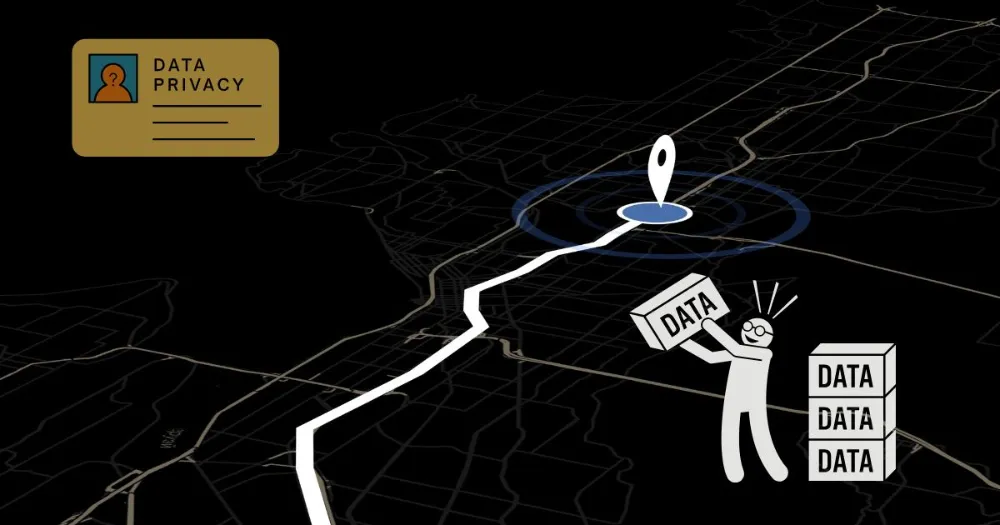
Many phone photos contain metadata alongside the image pixels. The fields depend on the device, camera settings, file format and whether another app has already processed the file.
This is EXIF data. And most people have no idea it exists until something goes wrong.
If you share images through messaging apps, see whether WhatsApp removes EXIF data and which metadata may remain.
What EXIF Data Actually Is
EXIF stands for Exchangeable Image File Format. It is a standard that was created in the 1990s so that cameras could attach technical information to every photo they took. The idea was useful: photographers could review a shot and immediately know the shutter speed, aperture, ISO and focal length used to capture it. No notebook required.
Smartphones can add location fields when camera location access and geotagging are enabled. A photo may lack GPS data because of device settings, permissions, processing or the capture workflow, so inspect the file before assuming it contains coordinates.
Metadata can travel with the original file, but editing and sharing services may preserve, alter or remove it. Check the received or downloaded copy when the outcome matters.
EXIF data is invisible but rich in sensitive information. And if you share photos without removing it first, you could be putting your privacy and that of your family, friends, coworkers, and clients at risk.
What Information Is Stored in a Photo
The full list is longer than most people expect. A typical smartphone photo carries:
Camera make and model (the exact device, not just "iPhone" but the specific model number)
Date and time the photo was taken, accurate to the second
GPS coordinates of where the photo was taken
Altitude at the time of capture
Camera orientation (whether you held the phone portrait or landscape)
Shutter speed, aperture and ISO
Whether flash was used
The software version running on the device
Sometimes the serial number of the camera
Camera model and settings, which device and what parameters were used. Location data including GPS coordinates, meaning many smartphones record where a photo was taken, making it possible to later figure out an exact address. Additional details depending on the device and software, such as serial numbers, image orientation, or which programs were used.
None of this is visible in the image itself. It sits in the file header, readable by anyone with basic software.
Why This Matters More Than You Might Think
Most people's reaction when they first learn about EXIF data is something like: "I don't have anything to hide." That is not really the point.
The point is that you are sharing information you did not consciously decide to share. The photo of your living room you posted online contains the address of your home. The photo from your child's school pickup contains the address of the school. The photo from your morning run contains a point that, over several posts, maps your route and tells anyone paying attention exactly when you leave the house and which way you go.
Metadata can be used to analyse a person's movements over time, and scrutiny of this information has had real-world impacts, such as forced resignations and fugitive arrests.
The most frequently cited case involves John McAfee, the antivirus entrepreneur. In 2012 he was on the run in Central America. A journalist published a photo of him taken on a phone that had geotagged the image. The photo's metadata included GPS coordinates locating McAfee in Guatemala, and he was captured two days later.
That is an extreme example. The everyday version is less dramatic but more common. In 2010, a stalker used EXIF GPS data from a celebrity's social media photos to track down their home address within hours. The celebrity had no idea their photos were broadcasting their exact location to millions of followers.
In 2016, two Harvard students used GPS coordinates stored in the metadata of photos posted on the dark web to identify 229 drug dealers. Drug dealers often post images of their products online to help prove their credibility, but they often forget to scrub EXIF data beforehand.
These are not hypotheticals. They are documented cases where image metadata led directly to someone being found.
Do Social Platforms Remove EXIF Data?
Sometimes. Not always. Not reliably.
Instagram and X strip most EXIF data when you upload a photo. Facebook's behaviour is less consistent and has changed over time. Smaller platforms and forums often do nothing at all. Direct sharing via messaging apps varies by the app: WhatsApp compresses images heavily and removes location data in the process, but sharing a file directly (not as a photo) preserves everything.
Some platforms like Instagram and Twitter automatically remove EXIF data when you upload photos. However, Facebook may retain some data, so it is always best to strip EXIF metadata before sharing.
Although some social networks and photo storage and sharing sites scrub metadata from uploaded photos, many fail to do so. This could allow attackers to gather personal information from images posted online.
The practical conclusion: you cannot rely on the platform to protect you. The only way to guarantee your photos go out clean is to remove the metadata yourself before sharing.
How to Check What Is in Your Photos Right Now
Before you change anything, it is worth seeing what your photos currently contain.
On Windows: Right-click the image file, select Properties, then click the Details tab. You will see a list of metadata fields. If GPS is present, it will show latitude and longitude values.
On Mac: Open the image in Preview, go to Tools, then Show Inspector. Click the information icon and select the GPS tab. If there is location data, it will appear here with a map view.
On iPhone: Open the Photos app, select a photo, and swipe up. The location where the photo was taken appears in the info panel with a map.
On Android: Open Google Photos, select a photo, and tap the three-dot menu, then Details. Location appears if it is present.
What you are looking for is any entry labelled GPS, Location, Latitude, Longitude, or similar. If those fields are populated, the photo carries your location data.
How to Remove EXIF Data
There are several approaches. They vary in convenience, completeness and what you have to give up in the process.
Disable Geotagging Before You Shoot
The cleanest solution is to stop embedding the data in the first place.
On iPhone: Go to Settings, then Privacy and Security, then Location Services, then Camera. Change the setting to Never. Your photos will no longer include GPS coordinates.
On Android: Open your camera app settings. Look for a toggle labelled Location tags, Geotagging, or Save location. Turn it off. The exact path varies by manufacturer.
The limitation of this approach is that it only affects new photos. Anything already on your device retains its existing metadata.
Remove It on Windows
Right-click the file you want to remove metadata from and select Properties. Click the Details tab, then click the link that says Remove Properties and Personal Information at the bottom. In the Remove Properties window, select Remove the following properties from this file and check all the fields you want to clear, or choose Create a copy with all possible properties removed.
This works but has limits. Windows does not remove all metadata fields, only those it recognises. Some camera-specific tags may remain.
Remove It on Mac
Open the image in Preview. Go to Tools, then Show Inspector. Select the GPS tab and click Remove Location Info. This removes the location specifically but leaves other EXIF fields intact.
For complete metadata removal on Mac, you need a third-party tool or the method below.
Use a Browser-Based Tool (No Upload Required)
The quickest option for most people, and the most private one, is to use a browser-based tool that processes images locally without uploading them.
ImgTweak removes all EXIF data, GPS coordinates, timestamps, camera model information and software tags automatically during compression. You do not need to check a box or select an option. It happens every time, for every image, with no action on your part.
The significant advantage is that nothing is uploaded to a server. Your photos stay on your device throughout the process. As we covered in Browser-Based Compression vs Upload Tools, this matters when the photos themselves contain sensitive location data. Sending a photo with GPS coordinates to a server to have the GPS coordinates removed is an odd way to protect privacy.
You can also see what metadata was in your file before it is removed. The Image Info panel in ImgTweak shows the camera model, date taken and whether GPS data was present. You get confirmation that the data existed and confirmation that it is gone.
If you are an iPhone user, there is one more thing worth knowing. iPhone photos are saved as HEIC files by default — a format that most non-Apple devices and websites do not support. When you share a HEIC file, it carries the same EXIF data as any other photo. The HEIC to JPG converter converts your iPhone photos to JPG in the browser with no upload, stripping all metadata in the process.
What Gets Removed vs What Stays
When you compress an image with a tool that strips metadata, the process removes the EXIF header entirely. Everything in it goes:
GPS coordinates and altitude gone. Camera make, model and serial number gone. Date and time the photo was taken gone. Shutter speed, aperture, ISO gone. Software tags and editing history gone. Colour profile information normalised for web.
What is not removed is anything in the visible image itself. If you photograph a whiteboard with an address written on it, that is in the pixels. No metadata removal tool affects the content of the image. Removing EXIF deletes metadata only and does not change the visible pixels or overall quality of the photo.
This is worth stating clearly because it is a common point of confusion. The photo looks identical after metadata removal. The file is simply smaller and carries no hidden data.
EXIF Data and File Size
There is a secondary benefit to removing metadata that has nothing to do with privacy.
Metadata size varies widely. Removing large thumbnails or metadata blocks can reduce some files noticeably, while ordinary EXIF fields may represent only a small fraction of a large photo. Remove metadata for privacy when appropriate, not on the assumption of a fixed percentage saving.
If you are preparing images for a website, this is free compression before you have even touched the quality settings. Combine it with actual compression and format conversion, and the size difference relative to the original is significant. The guide to getting started with image compression covers the practical side of this in more detail.
The Social Media Angle
Social media is where most people share most of their photos, so it is worth being specific about what each platform does.
Instagram strips EXIF data when you upload. So does X. Neither preserves your location or camera information in the publicly accessible version of the file.
Facebook's handling has been inconsistent over the years and varies by how you share. Uploading directly to your feed is generally safe. Sharing files through Messenger or in groups can be less predictable depending on the format.
Platforms you might not think about: Flickr allows users to opt in to showing location data publicly and preserves it by default. Some forum platforms and image boards retain full EXIF. GitHub will preserve metadata in images committed to repositories.
The safest approach across all platforms is to remove the metadata before you share, regardless of what the platform claims to do. You have no control over what they change, when they change it, or what happens to the raw file in the gap between upload and processing.
For a deeper look at how platform compression affects image quality and what you can do about it, the article on compressing images for social media covers the platform-by-platform specifics.
A Note on Screenshots
Screenshots typically do not include the same kind of sensitive metadata as a camera. If you take a screenshot of a photo rather than sharing the original file, the resulting image generally contains no GPS data because the screenshot is a new file created by the operating system, not by the camera.
This is a quick workaround if you need to share an image from your camera roll in a hurry and do not have time to process it. The trade-off is some quality loss and the possibility of visible screen elements like the status bar appearing in the screenshot.
For anything that matters, process the original file properly rather than relying on the screenshot method.
The Simple Version
You take a photo. Your phone attaches your location, the time, your device model and a dozen other details to that file invisibly. You share the file. Anyone who receives it can read all of that.
The fix takes seconds. Turn off geotagging in your camera settings so new photos do not carry location data. For photos you are sharing now, run them through ImgTweak before you send or post them. The EXIF data is removed during compression, the file comes out smaller, and nothing about where you were or what device you used goes along for the ride.
iPhone users have one extra step worth taking: if your photos are still in HEIC format, convert them to JPG first — that conversion strips all metadata too, and gives you a file that works everywhere.
It is not about being secretive. It is about sharing what you intended to share, which is the photo, not the metadata attached to it.
Related articles
What Is EXIF Data and Should You Remove It Before Sharing Photos
Every photo you take stores hidden data you never see: GPS coordinates, device model, timestamps, and more. Here is what EXIF data is and when you should remove it.
ReadHow to Convert HEIC to JPG
HEIC photos from your iPhone will not open on Windows, will not upload to most portals, and break in older software. Here is why and how to fix it in seconds.
ReadWhy Your Image Upload Keeps Failing
Image uploads fail for seven distinct reasons and file size is only one of them. HEIC format, wrong color space, and corrupt metadata all cause silent rejections.
Read