
What Is EXIF Data and Should You Remove It Before Sharing Photos
Every photo you take stores hidden data you never see. Here is what is in it, why it matters, and when you should remove it before the photo leaves your device.

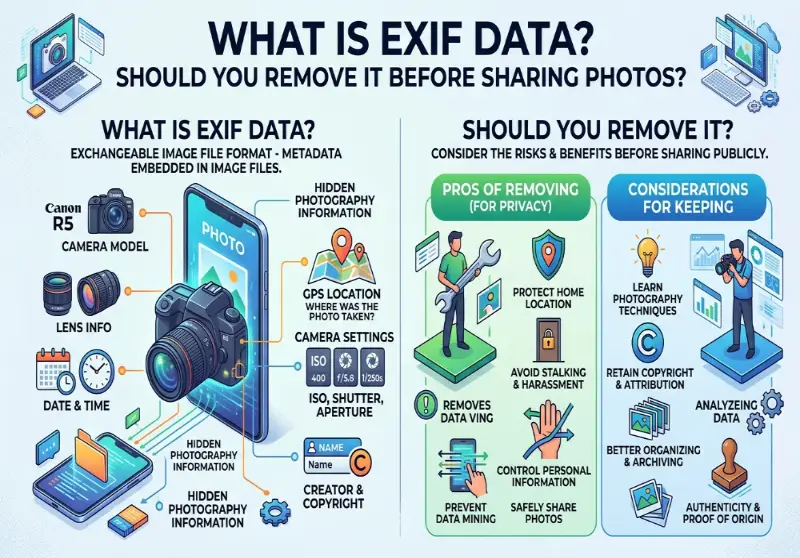
Most people assume a photo is just a photo. Pixels arranged in a grid, colors assigned to each one, saved to a file. Simple.
Many smartphones and digital cameras save metadata alongside image pixels. Which fields exist depends on the device, settings and file history. Editing, conversion and sharing services may preserve or remove them.
That hidden data is EXIF data. And once you understand what's in it, you'll probably want to think twice before sharing your next photo without stripping it first.
What EXIF Actually Stands For and Where It Came From
EXIF stands for Exchangeable Image File Format. The standard was created in 1985 by the Japan Camera Industry Association and has been maintained ever since by Japan's camera and electronics industry bodies. The original idea was straightforward: give cameras a way to record technical shooting information alongside the image so photographers could review their settings later.
Before digital cameras, photographers who wanted to track their technique carried a separate notebook and logged each shot by hand. Shutter speed, aperture, ISO, focal length. EXIF automated all of that. Instead of notes, the camera just wrote the information directly into the file.
That was genuinely useful, and it still is for anyone who shoots seriously. But smartphones changed the picture. They added GPS. And suddenly a standard designed to record "I shot this at f/2.8" was also recording "I shot this at these exact GPS coordinates."
What's Actually Inside Your Photos
The EXIF standard covers a broad range of data fields. Camera settings include the make and model, aperture, shutter speed, focal length, metering mode, and ISO. Image metrics include pixel dimensions, resolution, and colorspace. Date and time information records when the photo was taken.
Here's a more complete picture of what a typical smartphone photo might contain:
The device model (not just "iPhone" but the specific model number), the exact date and time the photo was taken down to the second, GPS coordinates of where you were standing, altitude at the time of capture, whether you used the front or back camera, the software version running on your device, the focal length and aperture, flash status, white balance, and sometimes a small embedded thumbnail of the original image even if you've cropped or edited the main photo.
When you share a photo with EXIF intact, you might be giving away your exact location (GPS coordinates can pinpoint where the photo was taken to within a few meters), when you were there (date and time stamps reveal your schedule and habits), and what device you use (camera model and serial numbers can link photos back to a specific device).
None of this is visible in the image itself. You'd have to open the file with dedicated software to see it. But it's there, and it's readable by anyone who knows to look.
How to Check What's in Your Photos Right Now
Before you decide what to do about EXIF data, it's worth seeing what your photos actually contain. The process is straightforward on most devices.
On Windows, right-click any image file and select Properties, then switch to the Details tab. You'll see a list of fields including GPS data if it's present.
On Mac, open the image in Preview, go to Tools, then Show Inspector. The GPS tab shows location data with a small map if coordinates are stored.
On iPhone, open Photos, select any image, and swipe up. The location info panel appears at the bottom showing a map of where the photo was taken.
On Android, open Google Photos, tap an image, then the three-dot menu and Details. Location appears if it's present.
If you want to see everything, the image info tool shows the full EXIF header for any photo: camera model, timestamps, GPS coordinates if they exist, and any other metadata fields present in the file. It works directly in the browser and nothing is uploaded to a server.
The GPS Problem Specifically
Of everything in the EXIF header, GPS coordinates are the field that matters most for privacy. Everything else is interesting in context. GPS is a direct threat.
A photo taken at your home contains your home's GPS coordinates. A photo taken at your child's school contains the school's GPS coordinates. A photo from inside your car contains the GPS coordinates of wherever you parked. If someone with your location data looks at even a handful of your photos, they can map your daily routine within hours.
The FBI has used EXIF data to determine the precise location where photos were taken. In one documented case, a photo posted to Twitter contained GPS coordinates that placed the poster at a specific house, leading to their identification and arrest.
Law enforcement case records include instances where stalkers extracted GPS metadata from photos shared on dating apps, forums, and personal websites to locate victims. In several reported civil cases, GPS metadata from shared photos was cited as the mechanism by which a stalker identified a victim's home.
These risks are possible when geotagging is enabled and the original metadata reaches another person. GPS recording is not enabled on every camera or workflow, so inspect the file rather than assuming.
The pattern is always the same. Someone shares a photo casually, not thinking about what's attached to it. Someone else downloads the file, opens it in any EXIF reader (free tools for this are everywhere), reads the GPS coordinates, and puts them into a map. The whole process takes about forty-five seconds.
When EXIF Data Is Genuinely Useful
It's worth being clear that EXIF data isn't inherently bad. There are real situations where it's valuable.
Professional photographers use it constantly. When you're reviewing hundreds of shots from a day of shooting, being able to see exactly which camera settings produced which results is how you get better at your craft. The exposure settings, focal length, and ISO information help you understand what worked and why.
Photo libraries use it to organize and search. Apple Photos, Google Photos, and Lightroom all use EXIF data to let you search by date, location, or camera settings. The "Memories" features that show you photos from a specific place or time period all rely on GPS EXIF data being present.
It helps with orientation. That automatic rotation of portrait vs. landscape photos when you view them on different devices? EXIF's orientation tag handles that.
For professional photographers, this data is essential. For everyone else sharing photos online, it's invisible. And that invisibility is exactly the problem. Most people sharing photos casually have no reason to need the GPS data in the file, but it goes along for the ride anyway.
What Platforms Actually Do With It
A common response when people learn about EXIF data is "don't the apps handle this?" Sometimes yes, sometimes no.
Instagram strips EXIF data when you upload. So does X (formerly Twitter). The publicly accessible version of an image on those platforms contains no location data.
Facebook's behavior has been inconsistent over the years. Uploading to your feed generally strips metadata. Sharing files through Messenger or in groups is less predictable. The platform's behavior can also change without notice, and you have no way to know whether a specific photo you shared yesterday was processed the same way as one you share today.
Smaller forums, personal websites, file sharing services, and direct file transfers typically preserve everything. If you email a photo, the EXIF data travels with it. If you attach it to a message in a Slack workspace, same thing. If you share it on a platform you don't know well, assume the worst.
The practical conclusion is that you can't rely on the platform to protect you. You don't control their processing pipeline, and it can change. The only guarantee is to remove the data before sharing, regardless of where the photo is going.
Should You Actually Remove It?
Here's the honest answer: it depends on where you're sharing and what the photos contain.
Photos shared publicly on any platform, with any audience that includes strangers, should have EXIF data stripped. There's no upside to sharing your GPS coordinates with an unknown audience and the downside ranges from mildly uncomfortable to genuinely dangerous.
Photos shared privately with people you fully trust are lower risk, but the metadata still travels with the file permanently. If that person ever forwards the photo, shares a screenshot, or uploads it somewhere else, the data goes with it. You lose control the moment you hit send.
Photos you're keeping for yourself, stored locally or in a private cloud backup, don't need stripping. The EXIF data is actually useful there: it's what lets your photo library organize images by time and place.
The situations where you should definitely strip EXIF before sharing: publicly posting photos taken at your home, sharing photos involving children, posting from a location you don't want known, uploading to any platform where your audience includes people you don't know personally, or sharing with someone you've only recently met.
The File Size Angle
There's a secondary reason to strip EXIF data that has nothing to do with privacy: file size.
Removing EXIF deletes metadata only and does not change the visible pixels or overall quality of the photo. But it does make the file smaller. EXIF data can add 10 to 20 percent to a file's size. On a 4MB photo that's up to 800KB of invisible data that serves no purpose once the image leaves your camera.
For anyone preparing images to upload to a job portal, passport application form, or any service with a strict file size limit, stripping EXIF is a free size reduction before you've touched compression settings. If you're already working on getting a file under a target size, the compress to 100KB tool handles both: it compresses the image and strips all EXIF as part of the process.
This comes up in the guide on why image files are so large which covers the full picture of what contributes to file size beyond just the pixel data.
How to Remove EXIF Data
There are several approaches, and which one makes sense depends on your situation.
Turn off geotagging at the source. On iPhone, go to Settings, then Privacy and Security, then Location Services, then Camera, and set it to Never. On Android, look for a Location tags or Geotagging toggle in your camera app settings. This stops new photos from recording GPS coordinates but doesn't affect anything already on your device.
Windows built-in tool. Right-click a file, select Properties, go to the Details tab, and click "Remove Properties and Personal Information" at the bottom. This removes fields Windows recognizes but may miss some camera-specific tags.
Mac built-in tool. Open in Preview, go to Tools, Show Inspector, select the GPS tab, and click Remove Location Info. This removes the GPS specifically but leaves other EXIF fields.
Browser-based tool with no upload. The fastest and most private approach for most people is a tool that processes files locally without sending them to a server. ImgTweak strips all EXIF data including GPS coordinates, timestamps, camera model, and software tags automatically during compression. It happens every time, for every image, with no separate step required.
This matters more than it might seem. If you're trying to remove private location data from a photo, sending that photo to a server is a strange way to do it. Browser-based processing means your image never leaves your device. The article on browser-based vs. upload tools covers why this distinction matters in more detail.
iPhone users specifically. If your photos are saved as HEIC files, which is the iPhone default since iOS 11, they carry the same EXIF data as any other photo format and have the same privacy considerations. Converting them is often already necessary for compatibility reasons since most non-Apple platforms don't accept HEIC. The HEIC to JPG converter handles the conversion in the browser, strips all metadata in the process, and produces a file that works everywhere.
What Gets Stripped vs. What Stays
When EXIF data is removed during compression, the entire metadata header is deleted. GPS coordinates, altitude, timestamps, device model and serial number, shutter settings, software version, and editing history all go.
What doesn't change is anything in the visible image. The pixels are identical. The photo looks exactly the same. File size goes down because the metadata block is gone, but nothing about the image content is affected.
This is a point people sometimes get confused about. Removing EXIF is not the same as altering the image. The photo of your house still shows your house. If there's an address visible on a building in the frame, that's in the pixels and no metadata tool touches it. EXIF removal deals with the hidden document attached to the file, not the image itself.
The Default Is a Privacy Problem
The issue isn't that EXIF exists. It's that GPS recording is on by default, most people don't know it's there, and sharing a photo is a normal, casual thing people do dozens of times a day.
You don't have to be doing anything sensitive for this to matter. A photo of a meal you cooked at home, posted to social media, contains your home address. A photo from your morning run contains a point on your usual route. A photo taken at a friend's house contains their address, shared without their knowledge or consent.
The fix is straightforward. Check what your camera is recording in Settings. For photos you're sharing publicly, run them through a tool that strips the metadata before they go out. The full breakdown of EXIF data and how to remove it goes deeper on the platform-by-platform specifics and the cases where it's mattered.
You're not being paranoid. You're just choosing to share the photo, not the attached document that says exactly where you were when you took it.
Related articles
How to Remove EXIF Data and GPS from Photos
Every photo you share contains hidden data including GPS coordinates, camera model and timestamps. Learn what EXIF data is and how to remove it before sharing.
ReadWhy Your Image Upload Keeps Failing
Image uploads fail for seven distinct reasons and file size is only one of them. HEIC format, wrong color space, and corrupt metadata all cause silent rejections.
ReadHow to Convert HEIC to JPG
HEIC photos from your iPhone will not open on Windows, will not upload to most portals, and break in older software. Here is why and how to fix it in seconds.
Read