
When to Use PNG Instead of JPG (A Practical Decision Guide)
PNG and JPG solve different problems, not interchangeable options. Here is exactly when each one is the right call, and what breaks when you pick wrong.

You're saving an image and your editor gives you a choice: PNG or JPG. Most people pick whichever one they used last time, or whichever one shows up first in the dropdown, and move on. Then the logo comes out with a white box around it where the transparent background used to be, or the screenshot looks smudged around the text, or the photo gallery takes forever to load because every image is a 4MB PNG that should have been a 400KB JPG.
The choice isn't arbitrary. PNG and JPG solve genuinely different problems, and picking the wrong one for the situation causes a specific, predictable failure every time. Here's how to tell which one you actually need, and what happens when you get it wrong.
The Core Difference in One Paragraph
JPG uses lossy compression, which means it permanently discards some image data to make the file smaller, betting that the human eye won't notice what's missing. PNG uses lossless compression, which means every pixel comes out of the file exactly as it went in, at the cost of a larger file size. That single difference is what drives every use case below. Lossy compression is efficient at photographs because it can throw away fine detail the eye barely registers. It's bad at flat colors and sharp edges because there's nothing redundant to throw away, so it starts visibly degrading the image instead.
There's a second difference that matters just as much: JPG has no transparency channel at all. Every pixel in a JPG is a solid color. PNG supports a full alpha channel, so parts of an image can be partially or fully see-through. If your image needs to sit on top of something else without a visible background box, that alone settles the format choice before compression even enters the conversation.
Five Situations Where PNG Is the Right Call
Transparent backgrounds. A logo, an icon, a product cutout, anything that needs to sit cleanly on a colored background or another image, needs PNG or a format that also supports alpha like WebP. Save it as JPG and the transparent area becomes solid white, breaking the design the moment it's placed anywhere other than a white page.
Screenshots and UI captures. Screenshots are almost entirely flat color blocks and sharp text edges, exactly the content JPG's compression handles worst. Save a screenshot as JPG and you'll see faint blurring and color fringing around every letter and every hard edge, an effect called ringing artifacts. PNG keeps every edge exactly as sharp as the original capture.
Logos and flat-color graphics. The same logic applies to any graphic built from a small number of solid colors: icons, diagrams, charts, illustrations with hard edges. JPG's compression introduces visible banding and softness in exactly the areas where a logo needs to look crisp. PNG's lossless encoding actually compresses this kind of simple, repetitive content quite efficiently too, since there's little variation for the algorithm to work against.
Images you'll edit again. JPG is lossy every single time you save it, an effect called generation loss. Open a JPG, make a small edit, save, and you've thrown away a little more data on top of what the original compression already discarded. Repeat that cycle across a design project with several rounds of edits and the accumulated quality loss becomes visible. Working in PNG (or a genuinely lossless format) between edits and only exporting to JPG at the very end avoids this entirely.
Anything requiring exact color or pixel accuracy. Technical diagrams, medical or scientific imagery, print-adjacent design proofs, or any case where a specific pixel value has to survive intact rather than approximately, need PNG's lossless guarantee. JPG's compression is designed around what the eye won't notice, not around numerical accuracy.
When JPG Is Still the Better Choice
Photographs, always. A photo has continuous tone: natural gradients in skin, sky, foliage, texture. JPG's compression is specifically built to exploit that kind of content, discarding fine detail the eye is least sensitive to while keeping the overall image looking essentially identical. For a typical photograph, JPG produces the same visual result as PNG at somewhere between 10 and 20% of the file size. Saving a photograph as PNG doesn't make it look better, it just makes it dramatically larger for no visible benefit.
Anywhere file size or load speed matters. Web pages, email attachments, social media uploads, anywhere bandwidth or load time is a real constraint. JPG's dramatically smaller files load faster and cost less to store and transfer, and at a sensible quality setting (75 to 90%) the compression is invisible at normal viewing sizes.
Anywhere transparency genuinely isn't needed. If the image is going on a solid background that matches, or fills its container completely with no edges showing through, PNG's transparency support is a feature you're not using, and its larger file size becomes pure cost with no corresponding benefit.
The Screenshot Test
This deserves its own section because it's the single most common mistake, and it goes in both directions. Screenshots should be PNG almost without exception, for the sharp-edge reasons above. But a photo embedded inside a screenshot doesn't change that rule. A screenshot of a photo gallery, or a photo pasted into a document you're capturing, is still mostly text and UI chrome around the edges, so PNG remains the right call for the capture as a whole, even though the specific photo region inside it would compress more efficiently as JPG on its own. The exception is a full-bleed photo screenshot with no UI elements at all, like a screen capture of a photo viewer showing just the image, which is functionally a photograph and can reasonably go either way depending on how much detail you need preserved.
What Happens When You Get It Wrong
Saving a transparent graphic as JPG is the most visible mistake, since the broken white box shows up immediately the moment the image sits on anything other than a matching white background.
Saving a photograph as PNG is the quiet mistake, since nothing looks visibly wrong, the page just loads slower than it should. A 3MB photo saved as PNG instead of JPG carries roughly five to ten times the file size for identical visual quality on screen, and that weight adds up fast across a page with several images.
Saving a screenshot as JPG produces the specific fuzzy-text problem described above. It's subtle enough that people often don't immediately identify JPG compression as the cause, they just notice the screenshot "looks a little off" without knowing why.
Re-saving an already-compressed JPG repeatedly during a multi-step editing workflow produces cumulative generation loss, a slow quality decline that's easy to miss step by step but obvious comparing the final result to the original.
A Quick Decision Checklist
| If your image is... | Use |
|---|---|
| A photograph, no transparency needed | JPG |
| A logo, icon, or graphic with a transparent background | PNG |
| A screenshot or UI capture | PNG |
| Text, a diagram, or a chart | PNG |
| Going through several more rounds of editing | PNG (convert to JPG only at final export) |
| Headed to a web page and speed matters | JPG, or a modern format like WebP |
| A product photo with a plain white background, no transparency | JPG |
| A product cutout that needs transparency | PNG, or WebP |
What About WebP and AVIF?
If you're choosing a format for something going on the web specifically, rather than a general-purpose choice, it's worth knowing PNG and JPG aren't the only two options anymore. WebP supports both a JPG-style lossy mode and a PNG-style lossless mode with transparency, typically producing smaller files than either older format at equivalent quality, with browser support now effectively universal. AVIF pushes compression further still. The PNG vs WebP comparison and best image format for websites cover that fuller comparison in depth. The short version for this article: if you're choosing between PNG and JPG specifically, everything above still applies exactly as described, WebP is a separate decision layered on top once you know whether you need lossless or lossy behavior in the first place.
How to Convert Between Them
If you've got an image in the wrong format already, converting takes seconds and runs entirely in your browser, no upload required.
Go to PNG to JPG if you have a photographic PNG with no transparency that's larger than it needs to be. The converter fills any transparent areas with white during conversion, so check your source image doesn't rely on transparency before converting, since that data can't be recovered afterward.
Go to JPG to PNG if you need a lossless copy of a JPG to start editing from, so further rounds of edits don't compound existing JPG compression on top of new losses.
If your PNG needs to get smaller while staying lossless, rather than converting away from PNG entirely, how to make a PNG file smaller covers the lossless optimization path plus the tradeoffs of each conversion option in more detail than fits here.
Frequently Asked Questions
Can I just always use PNG to be safe? You can, but it costs you significantly on file size for any photographic content, often five to ten times larger than an equivalent JPG with no visible quality benefit. PNG's lossless guarantee is genuinely valuable for graphics and screenshots, but it's not a universal safe default once photographs are involved.
Does converting a JPG to PNG recover any of the quality lost during JPG compression? No. Once JPG compression has discarded data, converting to PNG afterward just locks in exactly what remains, losslessly, from that point forward. It stops further loss on subsequent edits, but it doesn't restore anything the original JPG compression already discarded.
Is PNG always better quality than JPG? At high JPG quality settings (85% and above), the visual difference on a photograph is not perceptible to the eye at normal viewing sizes, despite PNG being technically lossless and JPG technically lossy. "Better quality" only becomes a meaningful practical difference at lower JPG quality settings, or for content types like text and sharp edges where JPG's compression method specifically struggles.
What should I use for a logo that needs to look good on both a website and printed materials? PNG for both cases, assuming the logo needs sharp edges and potentially a transparent background. For print specifically, check whether your print vendor needs a vector format like SVG or EPS instead, since raster formats including PNG can look soft when scaled up significantly for large print sizes.
Why does my screenshot look blurry even though I saved it as PNG? If a PNG screenshot looks soft, the likely cause isn't the format, since PNG is lossless. Check whether the screenshot was taken at a lower resolution than it's being displayed at, which causes the same softness as any image scaled up beyond its native size, entirely unrelated to compression format.
Try It Yourself
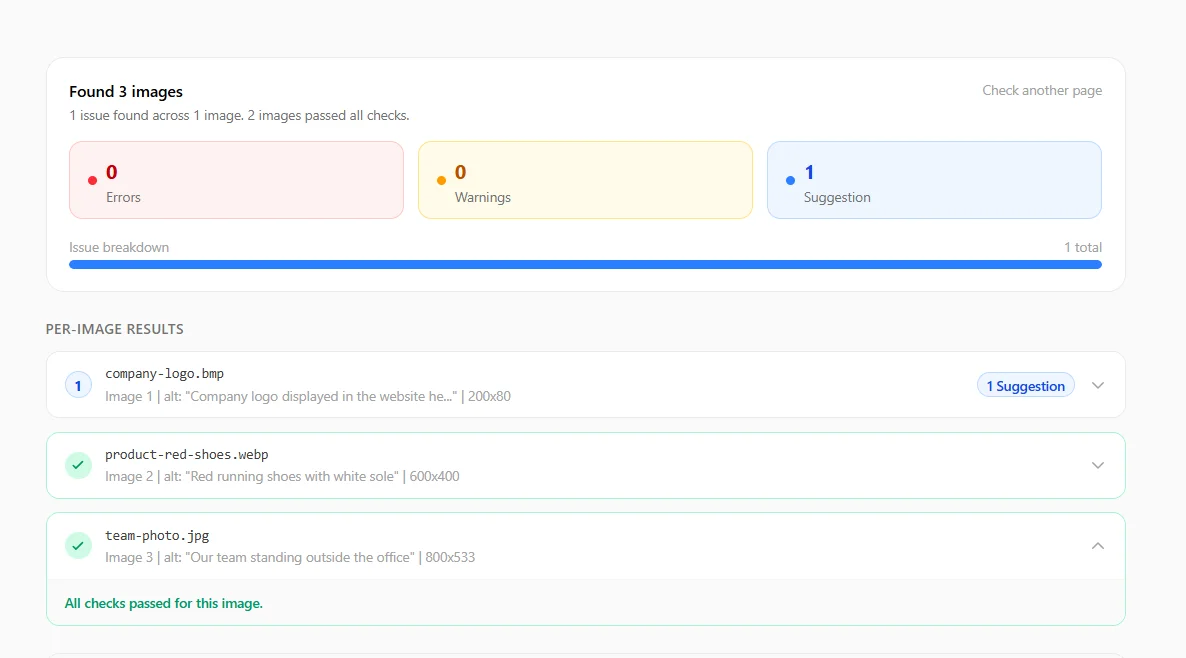
If you've got an image sitting in the wrong format right now, PNG to JPG and JPG to PNG both convert in your browser with nothing uploaded to a server. And if you're not sure whether your site's images are using the right format in the first place, running your page's HTML through the image SEO checker flags outdated and mismatched formats alongside its other checks.
Related articles
PNG vs WebP: Which Image Format is Better for Web Performance in 2026?
WebP lossless compresses 23 to 42% better than PNG according to Google's own published study, with the same transparency and zero pixel loss.
ReadHow to Make a PNG File Smaller (Without Losing Quality)
Lossless optimization saves 15 to 25%. Converting to WebP, AVIF, or JPG saves far more. Here is which method actually fits your PNG.
ReadBest Image Format for Websites in 2026
WebP, AVIF, JPEG, PNG, or SVG? The right format depends on the image type, with real file size data and browser support figures.
Read