
How to Optimize Images for Largest Contentful Paint (LCP)
Compression is only one of four things that control LCP. Here is how fetchpriority, preload, and one common lazy-loading mistake actually move the metric.

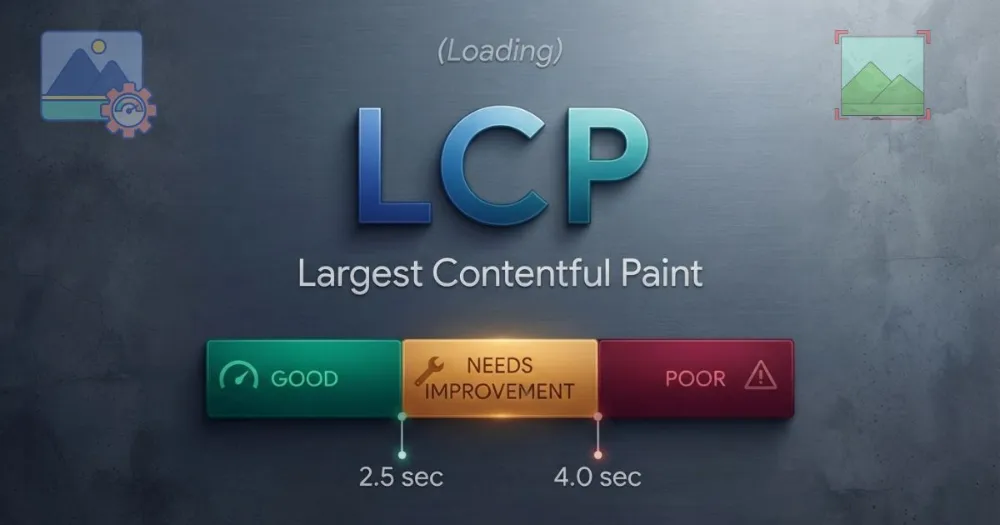
Your page loads. The layout looks right. Then you check PageSpeed Insights and LCP is sitting at 4.1 seconds, well past Google's 2.5 second threshold for "good." You compress the hero image, shave off a few hundred kilobytes, re-run the test, and LCP barely moves. That's the moment most people conclude image optimization doesn't actually help LCP. It does. You were just optimizing the wrong part of it.
LCP is the element that determines your score, on the majority of pages that element is an image, and file size is only one of four separate things that control how fast it paints. Get the other three wrong and a beautifully compressed image can still arrive late. Here's what actually moves the needle, in the order it actually matters.
What LCP Actually Measures
Largest Contentful Paint tracks the render time of the largest image or text block visible in the viewport when the page loads. It's one of Google's three Core Web Vitals, alongside INP and CLS, and it's specifically a loading metric: how long until the biggest, most prominent piece of content is actually visible to the person looking at the screen.
The reason this is an image optimization topic at all is straightforward. Images are common LCP candidates on content and commerce pages. A hero banner, featured product photo or background image behind a headline may be the largest visual element above the fold, but you should measure the page rather than assume which element Google is timing.
LCP breaks down into four separate phases, and each one is a different problem with a different fix:
| Phase | What it measures | What controls it |
|---|---|---|
| Time to First Byte | How long until the server starts responding | Hosting, caching, CDN configuration |
| Resource load delay | How long until the browser starts fetching the LCP image | Lazy loading, discovery order, JavaScript-injected images |
| Resource load duration | How long the image actually takes to download | File size, format, compression, network conditions |
| Element render delay | The gap between download finishing and pixels appearing | Main thread blocking from JavaScript and CSS |
Compression only touches one of these four phases. That's why shrinking a file can help less than expected. If the image is starting its download late, or something is blocking the main thread after it arrives, a smaller file just spends longer sitting around waiting for its turn.
Finding Your Actual LCP Element First
Before optimizing anything, confirm what your LCP element actually is. It's often not what you assume. Run your page through Google PageSpeed Insights or open Chrome DevTools' Lighthouse panel and look for the "Largest Contentful Paint element" callout in the report. It names the exact element Google is timing.
This step matters because the fixes below, especially fetchpriority and preloading, are only useful on the one image that's actually your LCP element. Applying them everywhere dilutes the effect entirely, which is covered in the next section.
Never Lazy-Load Your LCP Image
This is the single most damaging and most common mistake, and it's explicit in Google's own documentation: never set loading="lazy" on your LCP image. Lazy loading tells the browser to wait until layout confirms the image is entering the viewport before it starts downloading. For an image below the fold, that's exactly the right behavior. For the image that defines your LCP score, it guarantees a delay that has nothing to do with file size or network speed. The browser simply waits before it starts.
This mistake is common because a lot of "lazy-load everything" advice and site-builder defaults apply lazy loading indiscriminately across every image on a page, including the first one. The image SEO checker flags this specifically. Paste your page's HTML in and it checks whether the first image on the page has loading="lazy" set, which is a strong proxy for your LCP element in most layouts.
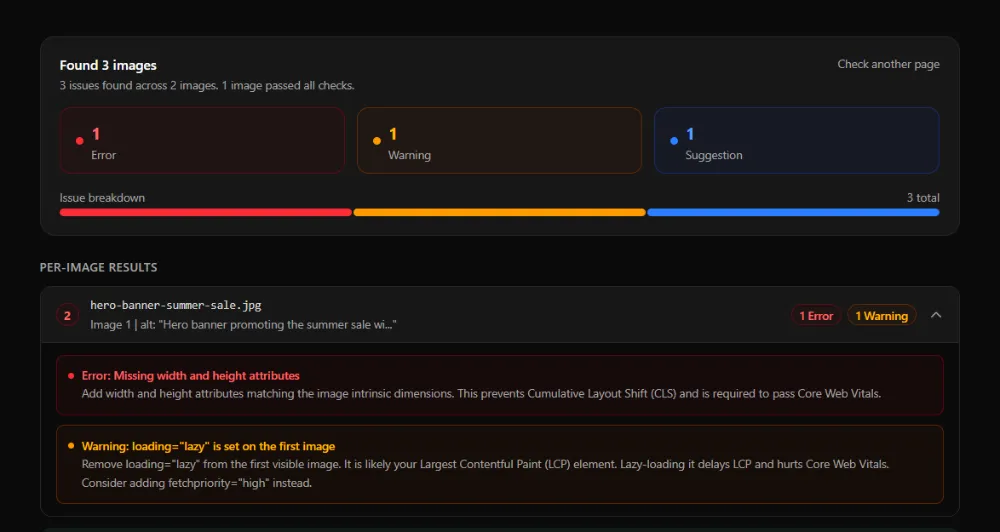
The fix is simple once you know to look for it: remove loading="lazy" from your LCP image specifically, while keeping it on every other image further down the page, since that part of the advice is still correct and still saves bandwidth.
Fetchpriority: One Attribute, a Measured 700ms Gain
Even without lazy loading, browsers don't automatically treat images as high priority, since images aren't render-blocking resources by default. The fetchpriority attribute fixes this directly:
<img src="/hero.webp" fetchpriority="high" alt="..." />This is not only a theoretical improvement. A web.dev Fetch Priority case study reports that an experiment on the Google Flights page improved LCP from 2.6 seconds to 1.9 seconds. That result demonstrates the mechanism, not a guaranteed gain for every page.
The rule that matters here, straight from Google Chrome's own guidance: use fetchpriority="high" on at most one or two images per page, and only on resources that are genuinely your LCP candidate. Marking every image high priority is functionally the same as marking none of them high priority, since the browser can't prioritize everything at once. If you're unsure which single image deserves it, that's what the DevTools LCP element check from earlier is for.
Preloading When the Browser Discovers Your Image Late
fetchpriority helps once the browser knows about an image. Some images take longer to be discovered in the first place, particularly CSS background images, images injected by JavaScript, or images referenced deep inside a stylesheet. For those cases, preload the resource explicitly:
<link rel="preload" href="/hero.webp" as="image" fetchpriority="high" />This tells the browser about a critical resource before it would naturally encounter it during normal HTML parsing. It's especially useful for a CSS background image acting as your LCP element, since the browser can't discover that image until it has already parsed and started applying the stylesheet, by which point real time has already passed.
The same restraint applies here as with fetchpriority. Preload only resources that are genuinely critical to the initial view. Preloading too many files can create network contention and reduce the benefit.
Explicit Width and Height Still Matter for LCP
Missing width and height attributes are usually discussed as a Cumulative Layout Shift problem, and they are, but they also feed into LCP's render delay phase indirectly. Without explicit dimensions, the browser can't reserve layout space for the image ahead of time, which can push back when surrounding content, and the image itself, actually finishes rendering.
The image SEO checker treats a missing width or height attribute as an error for exactly this reason, alongside its CLS implications, and it's usually the same page audit that catches the lazy-loading mistake above, since both checks run against the same pasted HTML in a single pass.
Reduce the Image's Byte Weight
This is the part most people start with, and it does matter, it's just the fourth lever rather than the first. Once loading priority is fixed, file size directly controls resource load duration, the phase most sensitive to compression.
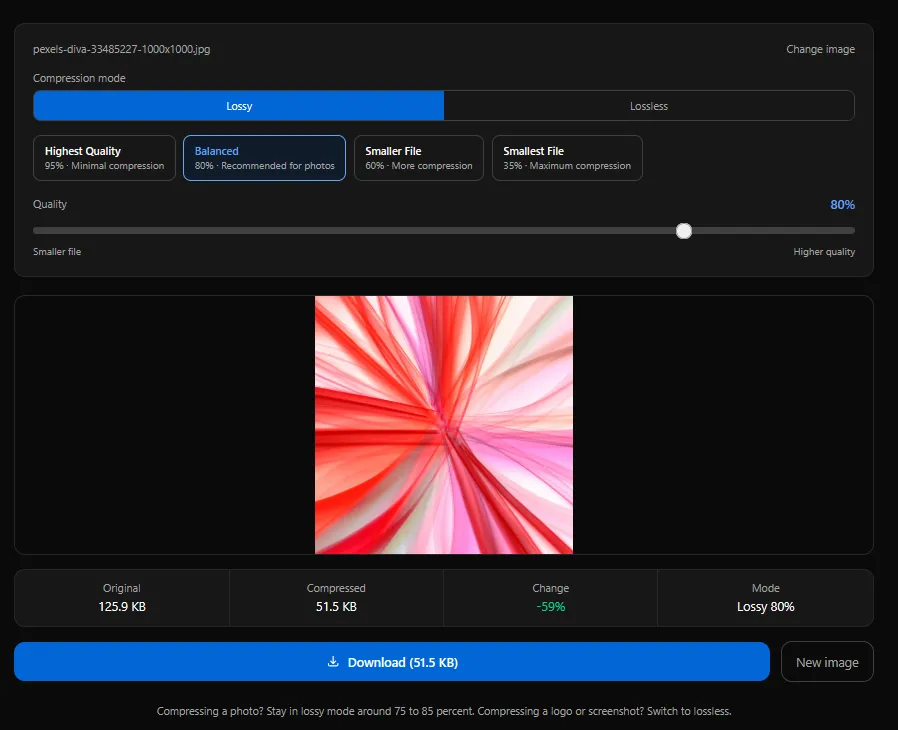
For a hero or LCP-candidate image specifically, the WebP compressor or JPEG compressor let you dial in an exact quality setting and watch the file size update live, rather than guessing at a number. If you would rather work from a target size, compress image for website speed starts at 100KB. That can shorten image download time, but no single file-size target guarantees an LCP result across different servers, devices and networks. The full comparison of which format to pick for web images, WebP, AVIF, or JPEG, is covered in more depth in the best image formats for SEO guide rather than repeated here.
Serve the Right Dimensions, Not a Downscaled Giant
A 2400 pixel wide hero photo displayed in an 800 pixel wide column is still downloading every one of those extra pixels, just to have the browser shrink it visually. That's pure wasted bytes contributing directly to load duration. Before compressing, check what your image is actually being displayed at and resize to that size, or close to it, first.
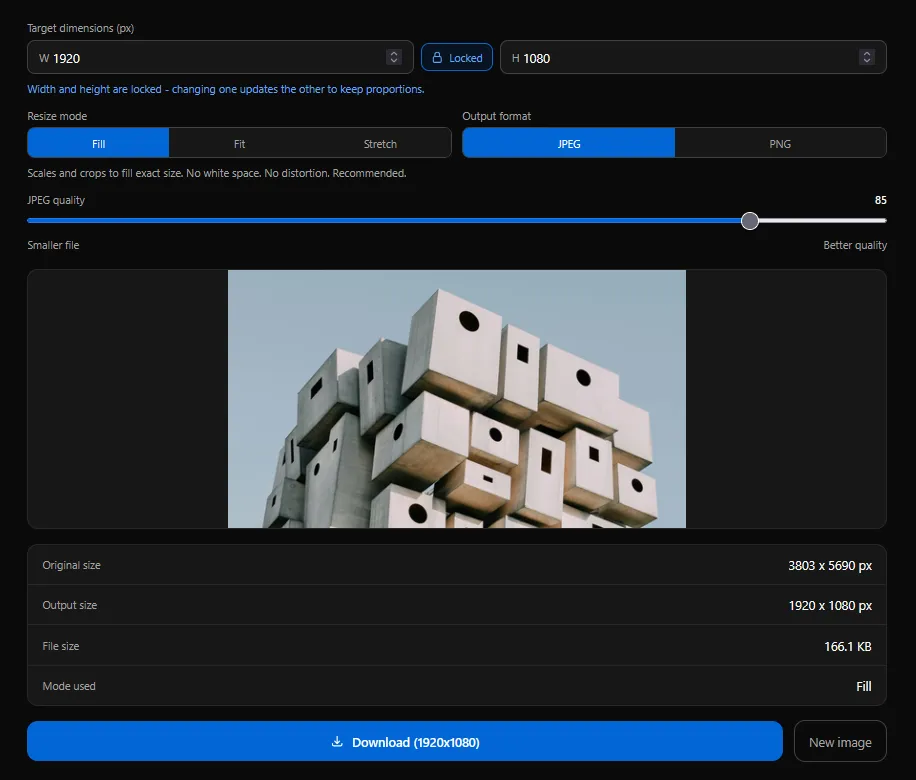
For a real production site, the fuller answer is responsive images using srcset and sizes, serving a 400px variant to a phone and a 1600px variant to a desktop monitor from the same img tag. That requires generating multiple sized versions of the same image, which resize for website covers for the most common breakpoints. This is manual work on a static site rather than something a single tool automates end to end, but it's the highest-leverage fix available for mobile LCP specifically, since mobile traffic is what Google's field data weighs most heavily.
TTFB and CDN: The Phase Images Can't Fix
None of the above helps if the server itself is slow to respond in the first place. Time to First Byte is the one LCP phase that has nothing to do with the image file itself, it's about how quickly your hosting infrastructure starts sending any response at all. A well-configured CDN that serves content from a location physically close to the visitor, and efficient server-side code that doesn't stall before it starts streaming a response, both reduce this phase directly. It's outside what any image tool can fix, but it's worth ruling out before assuming an LCP problem is purely image-related, since a slow TTFB delays every phase that comes after it.
Auditing Everything in One Pass
Rather than manually checking each image against every point above, running your page's HTML through the image SEO checker catches the lazy-loading and missing-dimensions mistakes automatically, alongside alt text and filename issues that matter for image search separately from LCP.
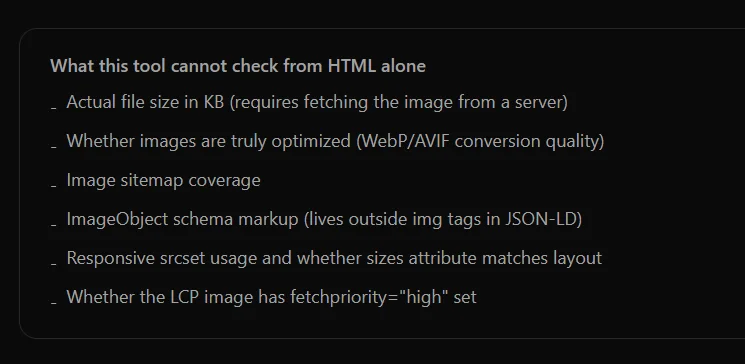
Worth noting honestly: the checker works entirely from pasted HTML using the browser's built-in parser, which means it can't fetch actual file sizes over the network, and it can't verify whether fetchpriority="high" is present on the correct element, since determining "correct" requires knowing which image Google actually selected as your LCP candidate. Those two checks still need the DevTools or PageSpeed Insights step from earlier in this guide. The tool is explicit about this rather than pretending to cover ground it can't.
Common Mistakes That Undo Everything Else
Setting fetchpriority="high" on multiple images, or on every image in a carousel, dilutes the priority signal enough that it stops functioning as a signal at all. One image, the actual LCP candidate, is the correct scope.
Preloading fonts, scripts, and images all at once creates the exact network contention that preloading was meant to prevent. A handful of truly critical resources preloaded is effective. Ten preloaded resources competing for the same early bandwidth is not meaningfully different from not preloading at all.
Fixing file size while leaving lazy loading in place is the mistake that started this article. A perfectly compressed image that doesn't start downloading until the browser confirms it's in the viewport still arrives late, and no amount of extra compression recovers that lost time.
Assuming the hero image is definitely the LCP element without checking. On pages with a large text headline, a video poster, or a background pattern competing for size, the actual LCP element can be something else entirely, and every optimization in this guide only matters if it's applied to the right element.
Frequently Asked Questions
Does converting my image to WebP or AVIF improve LCP on its own? It helps the resource load duration phase specifically, since smaller files download faster. It does nothing for the other three phases. An unoptimized loading priority on a perfectly compressed AVIF file will still produce a slow LCP.
Should I preload every image above the fold? No. Preload only your actual LCP candidate, plus at most one or two other genuinely critical resources. Preloading broadly recreates the network contention problem it's meant to solve.
Why does my LCP score vary between PageSpeed Insights and my own testing? PageSpeed Insights reports both lab data, from a single simulated test, and field data, from real visitors over the past 28 days, when enough traffic exists. Field data reflects a much wider range of devices and network conditions, particularly mobile connections, which is often why it looks worse than a fast wifi test on a desktop.
Is fetchpriority supported in all browsers? Support is strong across current versions of Chrome, Edge, and other Chromium-based browsers. Browsers that don't recognize the attribute simply ignore it without error, so there's no compatibility risk in adding it.
Can lazy loading ever be correct for a hero image? No. If an image is your LCP element, lazy loading it is never the right choice, regardless of layout or design intent. If the design genuinely doesn't need the image to be prominent, that's a signal it may not need to be the largest visual element in the first place.
Try It on Your Own Page
Start with the image SEO checker to catch the lazy-loading and missing-dimensions mistakes across your whole page in one pass. Then confirm your actual LCP element in PageSpeed Insights or DevTools before adding fetchpriority="high" or a preload tag, since those only help when applied to the right image. Once loading priority is correct, compress the file itself and resize it to its real display dimensions for the remaining gain compression alone can offer.
Related articles
How Image Compression Affects Core Web Vitals and SEO
Images cause 80% of LCP problems. Learn how compression, format choice and quality settings directly affect your PageSpeed score, Core Web Vitals and Google rankings.
ReadImage Optimization Checklist for Faster Websites
14 specific checks covering format, compression, dimensions, lazy loading, CLS prevention, EXIF stripping, alt text, and SEO.
ReadBest Image Formats for SEO in 2026
AVIF, WebP, JPEG, PNG, SVG. The format you choose directly affects LCP scores, Core Web Vitals and Google rankings.
Read