
How to Convert HEIC to JPG, PNG, WebP and PDF Online (Free, No Upload)
HEIC files from your iPhone will not open on Windows, Android, or most upload portals. Here is how to convert to any format in your browser with nothing uploaded to any server.

Your iPhone just took a photo. It saved it as a .heic file. Now you need to send it to someone on Windows, upload it to a job portal, submit it to a government form, or attach it to an email. And you are getting a compatibility error, a rejection, or a broken icon where the image should be.
Apple introduced High Efficiency capture in iOS 11. HEIC can store photographs efficiently, but support varies across operating systems, applications, and upload services. Check the accepted formats published by the destination before converting.
The fix is converting the file before you share it. Here is exactly how to do it for every common destination, using tools that run entirely in your browser with nothing uploaded to any server.
Choosing the Right Output Format
Before jumping to a specific converter, the format you convert to should match what you actually need the file for:
HEIC to JPG is a practical choice when a portal, form, or recipient explicitly accepts JPEG. It is widely supported, but no format is guaranteed to work in every system.
HEIC to PNG is the right choice when you need lossless quality and plan to edit the photo further, or when transparency matters. PNG files are significantly larger than JPEG for photographic content, but they never introduce additional compression artifacts during editing.
HEIC to WebP is worth testing when the photo is going on a website. Google's WebP studies found smaller files than comparable JPEG samples, while actual savings vary by image and encoder settings. See Google's WebP documentation.
HEIC to AVIF is another option when compression efficiency is the priority. Results and compatibility vary, so provide a fallback when your audience or delivery stack requires one.
HEIC to PDF is the right choice when you need to combine multiple iPhone photos into a single document for submission, particularly for job applications, visa applications, insurance claims, or university submissions.
How to Convert HEIC to JPG
Go to the HEIC to JPG converter and drop your HEIC file into the upload area. You can drop multiple files at once if you need to convert a batch.
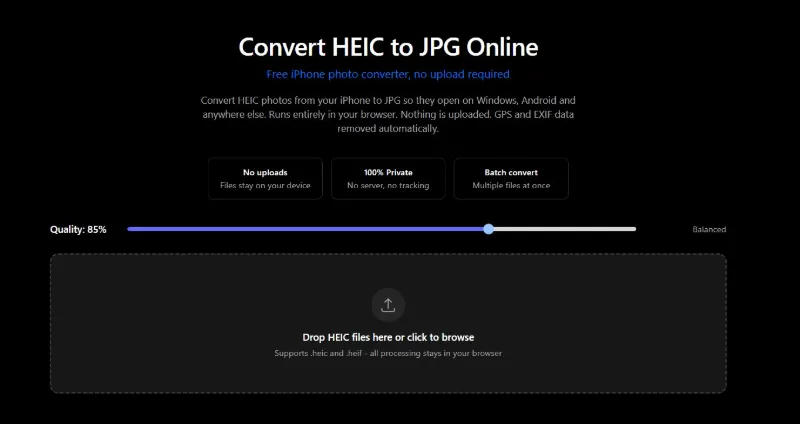
The converter decodes your HEIC file entirely in the browser using WebAssembly, the same technology that powers high-performance applications like video editors and games in the browser. Nothing is uploaded to a server. Your photos stay on your device throughout the entire process.
The quality slider defaults to 85%, which is a practical starting point for many photos. Inspect the result at its intended viewing size and adjust it when necessary. If you need a smaller file for a portal with a strict file size limit, you can lower the setting or use the compress to 100KB tool as a separate step after converting.
One thing worth knowing: the converted JPEG will typically be larger than the original HEIC file. HEIC's compression is more efficient than JPEG's, which is precisely why Apple switched to it. A 1.5MB HEIC photo might convert to a 2.5MB JPEG at quality 90. This is expected and does not indicate any problem with the conversion. If you need the JPEG under a specific size limit, compress it after converting.
EXIF metadata, including GPS coordinates, camera model, and timestamp, is stripped automatically during the conversion because the process decodes the raw pixel data and re-encodes it fresh. Your converted JPEG does not carry the location data your iPhone embedded in the original.
How to Convert HEIC to PNG
Go to the HEIC to PNG converter and drop your file in. The process is identical to the JPG converter except the output is lossless.
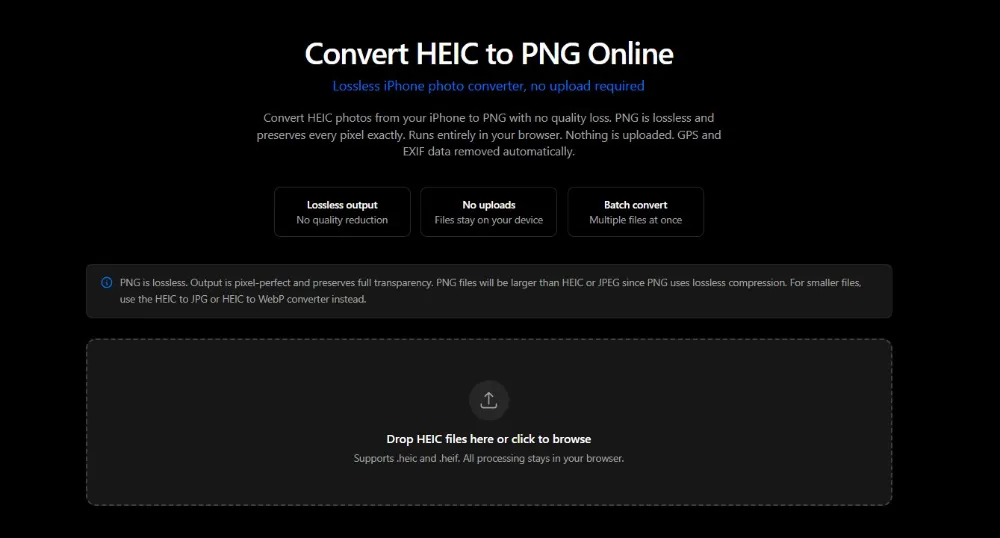
PNG stores every pixel exactly as decoded from the HEIC, with no additional compression loss. This makes it the right format for photos you plan to edit further: every save in Photoshop or another editor writes the exact pixels you have without accumulating compression damage.
The tradeoff is file size. A 3MB HEIC photo can become a 12 to 18MB PNG because PNG's lossless compression is poorly suited to complex photographic content with natural variation in every pixel. Do not use PNG if the file needs to be under a specific size limit or if it is going on a website. Use JPEG or WebP for those cases.
How to Convert HEIC to WebP
Go to the HEIC to WebP converter. WebP is the best choice for photos headed to a website or blog. At quality 82 (the default), WebP produces files 25 to 34% smaller than equivalent JPEG with no visible difference.
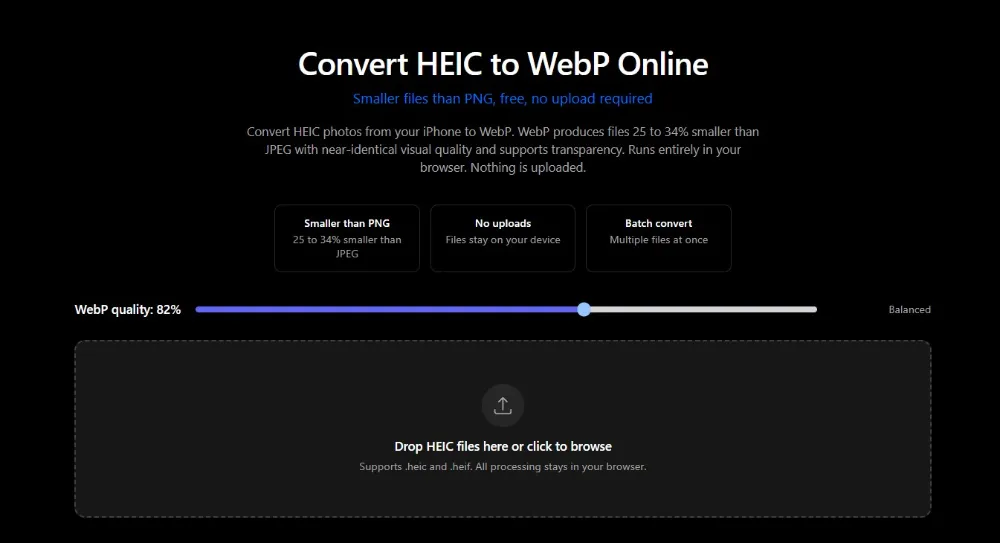
WebP also supports transparency, so if you have an iPhone screenshot of an interface element or a product photo with a transparent background, WebP preserves that transparency where JPEG cannot.
Browser support for WebP is above 97% globally as of 2026. The caveat is that older upload forms and software built before 2020 may not accept WebP. If in doubt about compatibility, use JPEG instead.
How to Convert HEIC to AVIF
Go to the HEIC to AVIF converter. AVIF takes the compression advantage of WebP further: files are typically around 50% smaller than equivalent JPEG at similar visual quality.
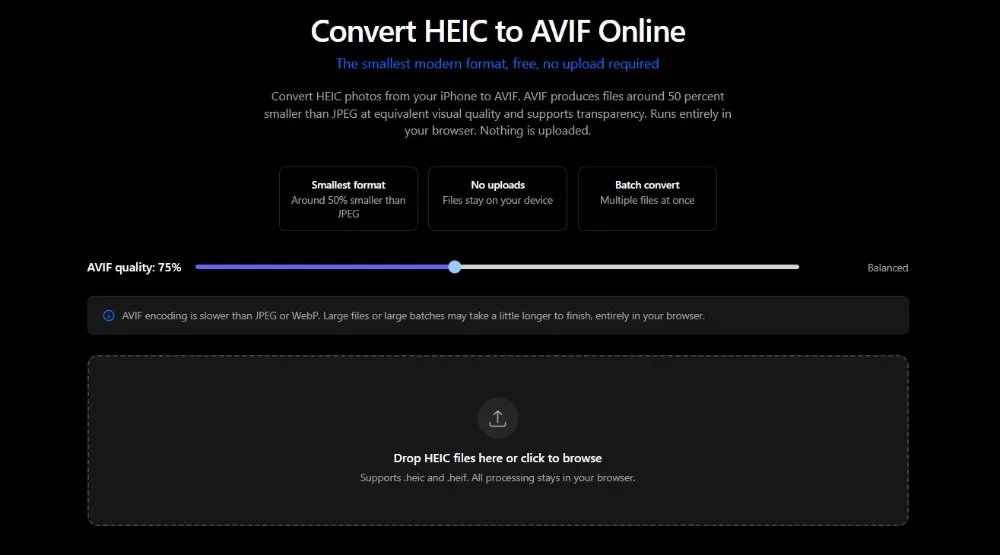
AVIF encoding takes longer than other formats because the codec is more computationally intensive. For a single photo this is a few extra seconds in the browser. For a large batch, it can be noticeably slower. If you need speed over maximum compression, WebP is a practical alternative. For maximum compression when that extra wait is acceptable, AVIF is the right choice.
How to Convert HEIC to PDF
Go to the HEIC to PDF converter. You can drop multiple HEIC files at once and they become individual pages in the output PDF.
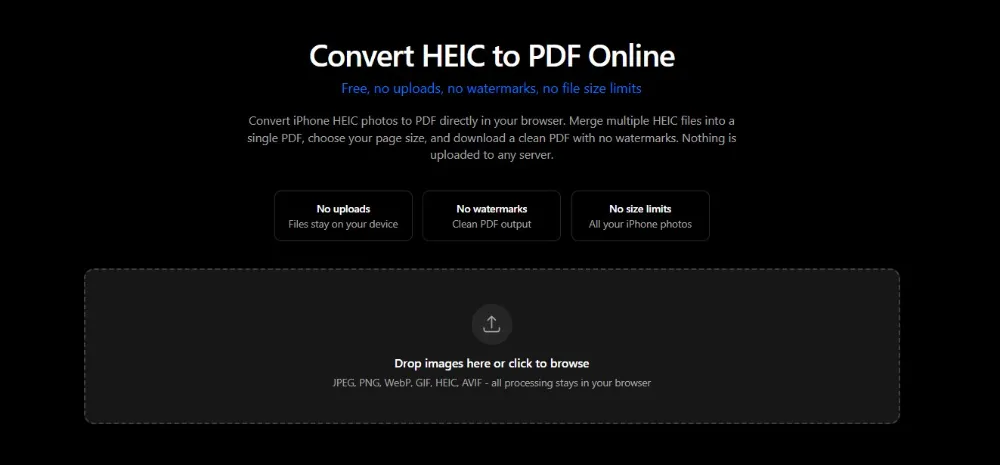
The PDF converter lets you drag rows to reorder pages before generating the final document, choose between page sizes (Fit to image, A4, or US Letter), set portrait or landscape orientation, and adjust margins. Once you click Create PDF, the complete document downloads in one file with no watermarks.
This can be useful for submitting multiple supporting documents together, provided the destination accepts PDF and its file-size and page requirements are met.
Converting Multiple Files at Once
Every HEIC converter on ImgTweak supports batch conversion. Drop as many files as you need into the upload area at once. Each file converts independently. When all conversions finish, you can download them individually or as a single ZIP archive containing all converted files.
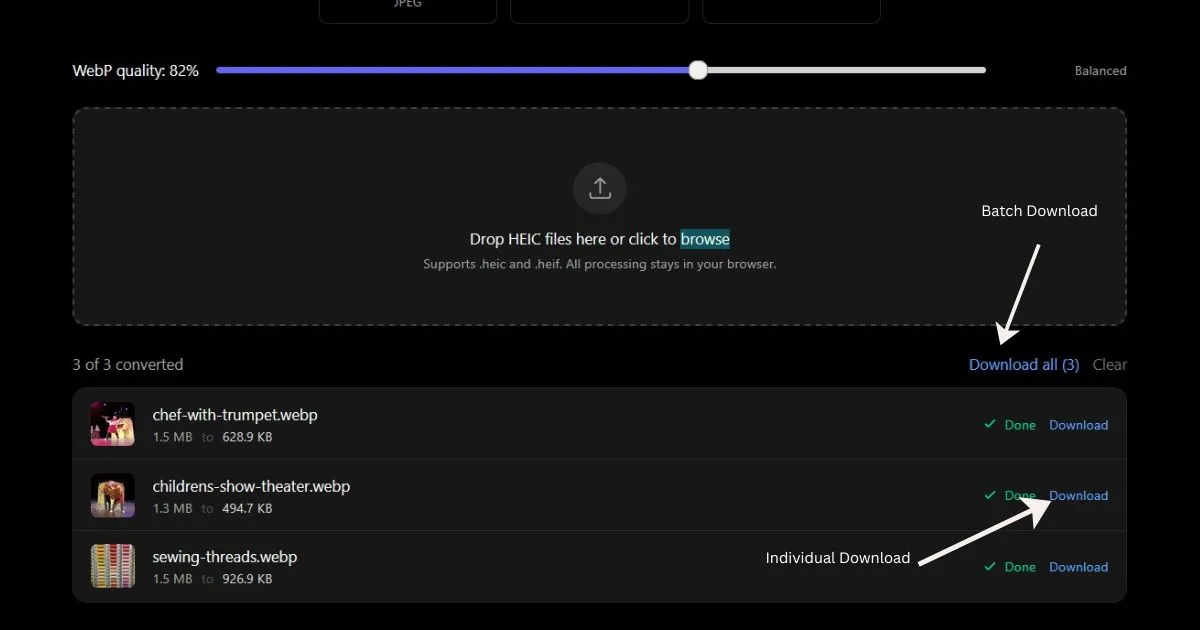
Batch conversion is particularly useful when you have exported a set of photos from your iPhone to a Windows machine and need to convert the entire folder before using the photos anywhere.
Why Your Converted File Might Still Be Rejected
If you have converted to JPEG and a portal still rejects the file, three things are worth checking.
File size is one possible cause. Portals can enforce different maximum sizes, and the converted JPEG at quality 85 may still exceed the stated limit. Follow the requirement shown by the destination, then compress to that target if necessary.
Pixel dimensions are occasionally checked separately from file size. Some portals validate that the image is within a specific pixel range. If the portal specifies dimensions, use the resize image tool to set exact pixel dimensions before or after converting. The guide on compressing images for job applications covers the specific dimension and size requirements for the most common portal types.
The filename occasionally causes issues on older portal software. Names with spaces, accents, or special characters can fail on systems that do not handle URL-encoded filenames. Rename the converted file to something simple like photo.jpg before uploading if you are still experiencing rejections after fixing the format and size.
How to Stop Your iPhone Saving HEIC in the First Place
If you regularly need to share photos outside Apple's ecosystem and want to avoid converting every time, you can change what format your iPhone camera saves to.
Go to Settings, then Camera, then Formats. Select Most Compatible instead of High Efficiency. From that point forward, new photos save as JPEG directly in your camera roll. Existing HEIC photos already on your device will still need converting, but nothing new adds to the problem.
The tradeoff is storage. JPEG files are roughly twice the size of HEIC files at equivalent quality, so switching to JPEG means your photo library will use more of your phone's storage over time. If storage is tight, keep shooting in HEIC and convert specific photos only when you need to share them.
For more context on why HEIC exists and the full technical background behind the compatibility problem, the guide on how to convert HEIC to JPG covers the format's history, what happens to quality during conversion, and the specific contexts where HEIC still causes problems in 2026.
Related articles
How to Convert HEIC to JPG
HEIC photos from your iPhone will not open on Windows, will not upload to most portals, and break in older software. Here is why HEIC exists and how to convert in seconds.
ReadWhy Your Image Upload Keeps Failing
Image uploads fail for seven distinct reasons and file size is only one of them. HEIC format, wrong color space, pixel dimension limits, and bad filenames all cause silent rejections.
ReadHow to Compress Images for Job Applications
Job portals reject photos without telling you why. Here is exactly what they want, what file size limits actually mean, and how to fix the HEIC problem that trips up most iPhone users.
Read