
How to Compress Images for Job Applications
Job portals reject photos without telling you why. Here is exactly what they want, what is going wrong, and how to fix it in under two minutes.
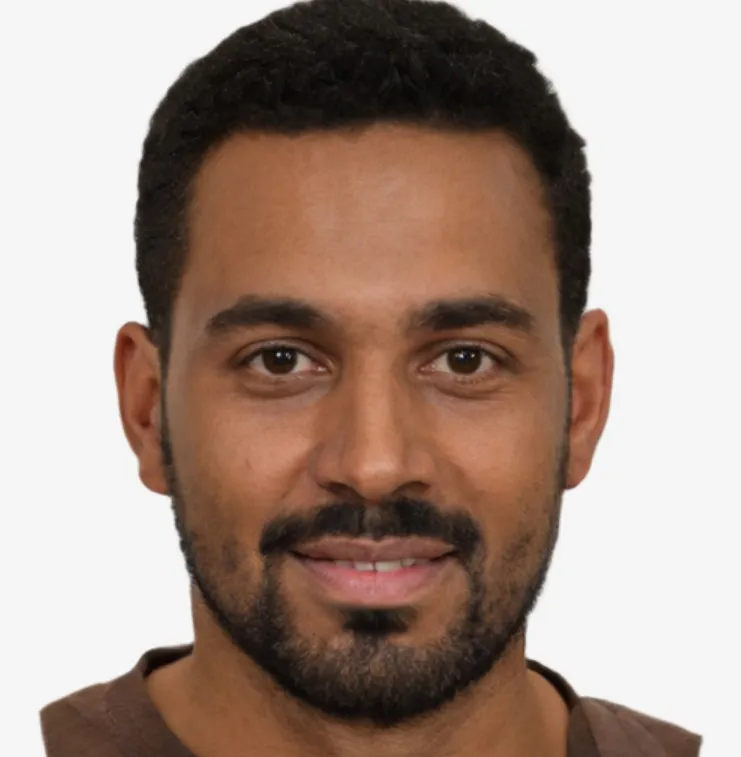
You spent time taking the perfect headshot. Good lighting, professional background, sharp focus. You open the job portal, find the photo upload field, and hit submit.
Nothing happens. Or worse: "File exceeds maximum size limit."
This is one of the most quietly frustrating things about online job applications. The portal does not tell you what went wrong. It just rejects the photo silently, or throws a vague error, and you are left wondering whether to try again or move on. Some systems quietly drop the photo entirely and let the application through without one, which is its own kind of problem.
The good news is that once you understand what these portals actually want, the fix takes under two minutes. Here is exactly what is happening and how to sort it.
Why Job Portals Have Such Strict Size Limits
The file size restrictions on job portals are not arbitrary. Most of these systems were built on enterprise HR software, some of it quite old, running on infrastructure that was designed before smartphone cameras existed. An HR platform processing thousands of applications does not want to store 8MB photos from every candidate. The system is built to store a small thumbnail of your face, not a print-quality portrait.
SAP SuccessFactors, which powers HR systems at hundreds of large employers worldwide, officially recommends profile photos at 100KB and 180x240 pixels. That is their own documented guidance. The maximum they accept is 2MB, but the recommended target is 100KB. Enterprise ATS platforms like Workday and Oracle Taleo have similar expectations baked into how they store and display photos.
Government recruitment portals tend to be even stricter. Banking exam portals in India, civil service recruitment systems across Asia and the Middle East, and public sector application platforms in many countries enforce hard limits between 20KB and 100KB, with automatic rejection at upload if the file is even 1KB over. The automated validator does not care that your photo looks perfect.
The phone in your pocket shoots at 12 to 50 megapixels. That translates to a JPEG file of 3MB to 10MB depending on the scene. The gap between what your camera produces and what these portals accept is enormous, and bridging it manually is what this guide is for.
The iPhone Problem Nobody Talks About
Before getting into compression, there is one issue that affects iPhone users specifically and causes more upload failures than file size alone.
iPhones have saved photos in HEIC format by default since iOS 11, which launched in 2017. HEIC is technically excellent: it produces smaller files than JPEG at the same visual quality, supports wider color depth, and handles Live Photos. The problem is that most of the world's software, including job portal upload systems, does not support it.
Windows does not display HEIC natively without a paid codec from the Microsoft Store. Chrome, Firefox, and Edge do not render HEIC. Government portals, job application forms, and HR systems frequently require JPEG or PNG, creating real-world upload failures for iPhone users who do not realize their photo is in a format the portal cannot process.
The College Board ran into this exact problem during AP exams a few years ago, when thousands of students tried to upload photos of their written responses from iPhones. The HEIC files would not upload, the exams were flagged as incomplete, and students had to retake. It was a well-documented mess.
If you are on an iPhone and your photo is not uploading, the first thing to check is the format. The HEIC to JPG converter handles this directly in your browser with no upload needed. Drop the HEIC file in, get a JPEG out, and try again. That alone resolves the majority of iPhone upload failures on job portals.
If you want to prevent the problem entirely going forward, go to Settings, then Camera, then Formats, and select Most Compatible. Your camera will save new photos as JPEG from that point on.
What File Size Do Job Portals Actually Need?
There is no universal job-portal size. Use the value printed beside the upload field or in the employer's official instructions.
Enterprise HR platforms used by multinational companies typically cap profile photos at 100KB. Government recruitment portals often sit between 20KB and 100KB, with 50KB being a common limit on South Asian civil service and banking exam portals. LinkedIn recommends keeping photos under 8MB (generous) but applies its own compression on upload, so pre-compressing to 100KB or below gives you more control over how the final image looks after their processing runs.
When submitting a CV with a photo attached directly by email, keeping the photo under 100KB ensures the total email does not balloon to a size that gets blocked by corporate mail filters, which typically cap attachments at 10-25MB total. A 6MB photo attached to a 500KB PDF is an easy way to have an email quietly rejected before any human sees it.
The compress image for job application tool is built specifically for this use case. It compresses your photo to under 100KB in the browser, strips the metadata, and gives you a download. Nothing is uploaded to a server.
If the portal specifies a different target, the size-specific tools at 50KB, 100KB, 150KB, and 200KB let you hit an exact number.
How to Compress a Job Application Photo: Step by Step
Here is a troubleshooting sequence that works for many portals.
Step 1: Check the format first. If you are on an iPhone and the file ends in .heic or .HEIC, convert it to JPEG before anything else. Use the HEIC to JPG converter, which runs in the browser and takes about ten seconds. If the file is already a JPEG or PNG, move to step two.
Step 2: Check what the portal actually requires. Look near the upload field, in a tooltip or in the employer's help documentation for file size, accepted formats and dimensions. If none are published, contact the employer or portal support rather than assuming a 100KB JPEG rule.
Step 3: Resize the dimensions if required. Many portals specify pixel dimensions alongside the file size. Common requirements are 200x200, 300x400, or 400x600 pixels for portrait photos. The resize image tool lets you enter exact pixel dimensions. Resizing to the correct dimensions before compressing also makes the compression more effective: fewer pixels means a smaller starting point.
Step 4: Compress to the target size. Drop the file into the compress image for job application tool or the appropriate size-specific compressor. The tool compresses the image and shows you the result size. Download it when it is within the limit.
Step 5: Check the result before uploading. Open the compressed photo and look at it at normal screen size. Faces should be clearly recognizable. There should be no obvious blocking or blurring at the edges of the face. If it looks visibly degraded, the target size may be too aggressive for the original photo quality, and you may need a higher-quality source image to start from.
Why Compressing to a Very Small Size Looks Bad (And How to Avoid It)
There is a practical floor to how small you can compress a photo before the quality becomes a problem.
At 20KB or below, JPEG compression artifacts become visible at normal viewing sizes. You will see blocky distortion around high-contrast edges, the face, hair, and collar lines. At 50KB, a typical passport-style photo looks good. At 100KB, it looks sharp.
The quality of your source image matters a lot here. Compressing a 4K photo taken on good hardware down to 50KB produces a much better result than compressing a screenshot or a low-light photo from a potato camera down to the same size. Start with the best available original.
If the portal requires something very small, like 20KB or 30KB, there are a few ways to improve the result. First, make sure the dimensions are appropriate for the size. Compressing a 1200x1600 pixel photo to 20KB will look bad. Resizing to 300x400 first and then compressing to 20KB will look significantly better because there are fewer pixels that need to fit in the budget. Second, shoot against a plain background. Busy backgrounds require more data to encode. A simple white or gray wall behind you means more of the file budget goes toward encoding your face. Third, use good lighting. Underexposed or noisy photos have more complex data to compress, which makes the compression artifacts worse.
The compress image to 20KB and compress image to 30KB tools handle the very strict portal limits. Pair them with a resize to the portal's specified dimensions first and you will get the best possible result at that size.
What Happens to EXIF Metadata and Why It Matters
Every photo your phone takes carries invisible data: GPS coordinates of where you were standing, the exact timestamp, your device model and serial number, camera settings. This information lives inside the file header, invisible in the image itself, but readable by anyone who opens the file properties.
For many job-application photos, this metadata is unnecessary. Location data can reveal where a photo was taken, while metadata size varies from one file to another. Removing it may provide additional room under a strict file-size limit, but do not assume a fixed saving.
ImgTweak's relevant compression outputs omit common EXIF fields such as GPS, device information, and timestamps. You can confirm the result using the image info tool before submitting a file.
For a more detailed look at what EXIF data is and why removing it matters, the guide on EXIF data and privacy covers it properly.
LinkedIn Is a Separate Case
LinkedIn is not like most job portals. It accepts photos up to 8MB and processes its own compression on upload. Technically you can upload an 8MB photo and LinkedIn will handle the rest.
The reason to compress before uploading anyway is control. LinkedIn's automatic compression is not always kind, particularly to photos with fine hair detail, dark skin tones in low-contrast settings, or images with soft focus backgrounds. Uploading at a smaller, well-compressed file where you have already chosen the quality settings produces more predictable results than letting LinkedIn's algorithm make those decisions.
LinkedIn recommends 400x400 pixels at minimum, with 640x640 being the sweet spot. It displays profile photos as circles, so leave enough space around your face for the circular crop. A JPEG at 80-85% quality at those dimensions lands around 40-80KB and looks sharp without giving LinkedIn anything to over-compress.
The resize tool handles the dimension side. For the compression, the compress image for job application tool keeps the quality high while bringing the file size down to a range where LinkedIn's own processing does the least damage.
Government and Banking Exam Portals
These deserve a specific mention because they are the strictest.
Banking exam portals in India (IBPS, SBI, RBI, NABARD) typically require photos between 20KB and 100KB in JPEG format, with dimensions around 200x230 pixels. The IBPS standard is 4.5x3.5cm at 20-100KB. One user shared that being 1KB over the limit caused their application to be rejected outright, with no opportunity to fix it until the correction window opened days later.
Civil service portals in the UK, Singapore, Malaysia, and across the Middle East enforce similar limits. Many government portals in Nigeria, Ghana, and other parts of West Africa also require photos under 50KB for application forms.
The pattern across all of them: JPEG format, strict KB limits, specific pixel dimensions, and zero tolerance for over-limit files.
For these portals, the sequence is: convert from HEIC if needed, resize to the required pixel dimensions first, then compress to the required KB target. Do the resize before the compression, not after. A correctly sized photo at the right dimensions compresses much more cleanly than trying to hit a 20KB target on a full-resolution photo.
The compress image to 50KB and compress image to 100KB tools work for the most common ranges. The compress image for passport tool handles the passport-photo style requirements that many government portals follow for their photo specifications.
When Your Photo Still Does Not Upload
If you have compressed the photo, converted from HEIC, and it still will not upload, the next things to check are these.
Color space. Some government portals, particularly for visa and passport applications, require sRGB color space. Photos taken on iPhone Pro models with ProRAW or certain mirrorless cameras can be exported in Display P3 or AdobeRGB color space, which automated validators reject even if the file format and size are correct. Converting to JPEG through a browser-based tool will typically normalize the color space to sRGB automatically.
File naming. Some portal validators reject files with spaces, special characters, or non-standard extensions in the filename. Rename the file to something simple like photo.jpg before uploading if you are still having trouble.
Format confirmation. A file named photo.jpg is not necessarily a JPEG. If you renamed a PNG to .jpg it will still fail on portals that validate the actual file header rather than just the extension. Converting through a proper tool rather than renaming ensures the format is genuinely what it says it is.
Trying a different browser. Some upload widgets are buggy in specific browsers. If Chrome is failing, try Firefox or Safari.
A Practical Summary
The most common job portal photo rejection comes down to three things: the file is too large, the format is HEIC rather than JPEG, or both. Fixing either takes less than a minute once you know where to look.
For an application that accepts JPEG and states a 100KB ceiling, convert from HEIC if necessary and use the compress image for job application tool. Choose a different target when the portal publishes a different limit.
For strict government or banking portals: check the exact pixel dimension requirements, resize first using the resize image tool, then compress to the specific KB target. Use the compress image to 50KB or compress image to 20KB tools for the tighter limits.
For LinkedIn: resize to 640x640, compress to around 60-80KB, and upload as JPEG. You will have more control over the final appearance than if you let LinkedIn compress an 8MB original.
The portal is not going to tell you why it rejected your photo. But the rejection is almost always one of these three things. Sort the format and the size before you apply, and you will not have to think about it again.
Related articles
How to Reduce Image Size for Job Applications
Job portals reject photos silently. Here is exactly why it happens and how to compress your photo to any KB target in under two minutes without touching the quality.
ReadHow to Compress Image to 100KB (Step-by-Step)
Phone cameras produce 3 to 12MB photos by default. Most portals cap uploads at 100KB. Here is exactly how to bridge that gap without destroying image quality.
ReadHow to Convert HEIC to JPG
HEIC photos from your iPhone will not open on Windows, will not upload to most portals, and break in older software. Here is why and how to fix it in seconds.
Read