
How to Extract Colors from an Image (Free Online Tool + Step-by-Step Guide)
Get exact HEX, RGB, and HSL color values from any photo, screenshot, or logo, right in your browser. No uploads, no guessing, no software to install.

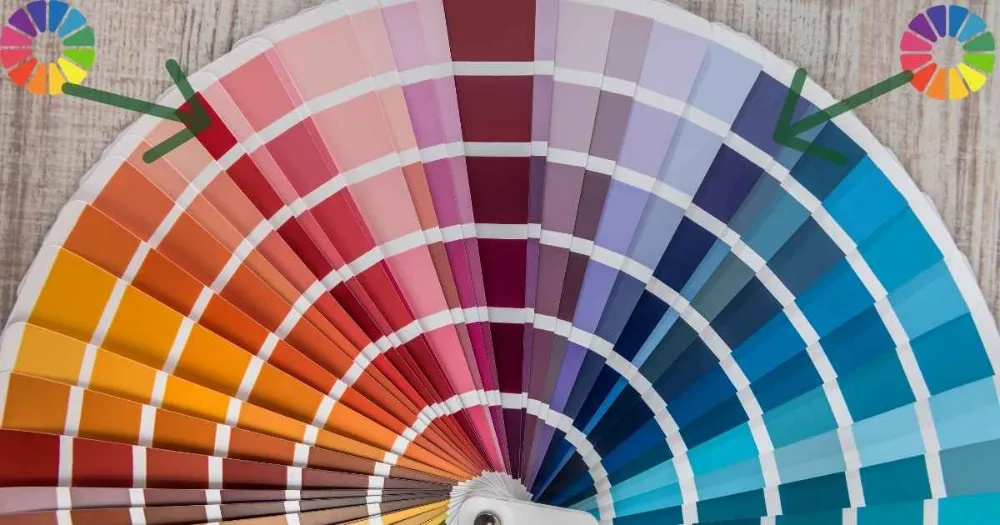
You open a client's logo file, zoom in, and try to eyedrop the exact blue they used. Three clicks later you've got three slightly different HEX codes, none of which match what's actually printed on their letterhead. Or maybe you're building a landing page and the only brand reference you have is a JPEG screenshot someone emailed you, and you're squinting at pixels trying to guess whether that's #1A73E8 or #1E88E5.
This is a solved problem. Reading exact color values out of any image file, in HEX, RGB, and HSL, takes a few seconds once you know which tool does what. Here's what color extraction actually does, how the underlying math works, and a full walkthrough of pulling a usable palette or an exact pixel color out of any photo, screenshot, or logo you have on hand.
What Does It Mean to Extract Colors from an Image?
Extracting colors from an image means analyzing the pixel data in that file and identifying the colors that matter, then handing them back to you as usable values you can drop into design software or code. There are two distinct things people mean when they say this, and separating them early saves you from using the wrong tool for the job.
The first is palette extraction. This looks at the whole image and identifies a small number of colors, usually somewhere between four and twelve, that represent the dominant tones across the entire photo or graphic. Feed in a sunset photo and palette extraction gives you back the handful of oranges, purples, and blues that define that image's overall mood.
The second is pixel picking, sometimes called eyedropping. This is when you select one exact point in the image and get the precise color value at that single pixel. If you need to match the specific red used in a logo, pixel picking is what you want, because a palette tool might average that red together with three other nearby shades and hand you back something close but not exact.
ImgTweak splits these into two dedicated tools for exactly this reason: the color palette generator for automatic extraction, and the image color picker for precise pixel picking.
Why Would You Need to Extract Colors?
The most common reason is brand consistency. A designer may receive a logo with no style guide and need representative HEX values for a website, slide deck, or packaging. A color picker can sample the pixels, but the correct production value should come from the brand's source artwork or documented color specification when available.
Developers run into this constantly when a client sends over a mockup as a flattened PNG instead of a Figma file, and the only way to get accurate CSS values, or a full set of design tokens, is to extract them directly from the image.
Interior designers and photographers use palette extraction for a completely different reason: understanding the mood of an image rather than matching a specific value. Pull the dominant palette from a mood board photo and you've got a starting point for paint colors, fabric choices, or a room's overall scheme without ever opening a design tool.
There's also a simpler use case that comes up more than you'd expect. Someone finds an image online, maybe a poster, a product shot, or a piece of art, and just wants to know what those colors actually are so they can recreate the look somewhere else. No brand guidelines involved. Just curiosity turned into a usable HEX code.
How an Image Color Picker Works
Here's the part most people never think about, which is exactly why results from different tools can look inconsistent. Underneath the interface, palette extraction runs a quantization algorithm, a method for taking the hundreds of thousands of distinct colors in a typical photograph and reducing them down to a small, representative set.
The most widely used method for this, going back to Paul Heckbert's 1980 thesis, is called median-cut quantization, and it's still the basis for most palette tools in use today, including the ImgTweak color palette generator. The process starts by treating every pixel in the image as a point in a three-dimensional color space, one axis each for red, green, and blue. It finds whichever channel has the widest spread of values across the whole image, sorts every pixel along that channel, and splits the set in half at the median point. That gives two groups. The process repeats on whichever group has the most color variation left in it, splitting again and again, until the total number of groups matches how many colors you asked for. Average all the pixels inside each final group together, and that average becomes one of your extracted colors.
The reason this works better than just picking the most frequently occurring pixel values is that raw frequency gets skewed. A photo of a person standing in front of a plain wall might have millions of near-identical wall pixels and comparatively few skin-tone or clothing pixels, so a naive frequency count would hand you back five shades of the same wall color and miss everything else. Median-cut splits by color variation instead of raw count, which is why it actually captures the visual character of an image rather than just its most repeated pixel.
All of this runs entirely inside your browser using the Canvas API to read pixel data directly. Nothing gets uploaded anywhere, which matters if the image you're extracting colors from is a client's unreleased product shot or anything else you'd rather not send to a third-party server.
Color Picker vs Color Palette Generator: Which Tool Do You Need?
Since ImgTweak has two tools that both deal with color, it's worth being explicit about when to use which one, because using the wrong one for the job wastes time.
Reach for the color palette generator when you want to understand the overall color character of an image and walk away with a set of coordinated colors, four to twelve of them, ready to use as a design system. This is the right choice for building a UI palette from a hero photo, documenting a brand's colors from a product shot, or getting design tokens out of an image for a codebase.
Reach for the image color picker when you need one exact value from one exact spot. This is the right choice for matching a specific logo color, sampling a precise shade from a reference photo, or confirming that a rendered color matches a source file pixel for pixel.
A quick way to decide: if your question is "what colors make up this image," you want the palette generator. If your question is "what is the exact color of this one thing," you want the picker.
How to Extract a Color Palette (Step-by-Step)
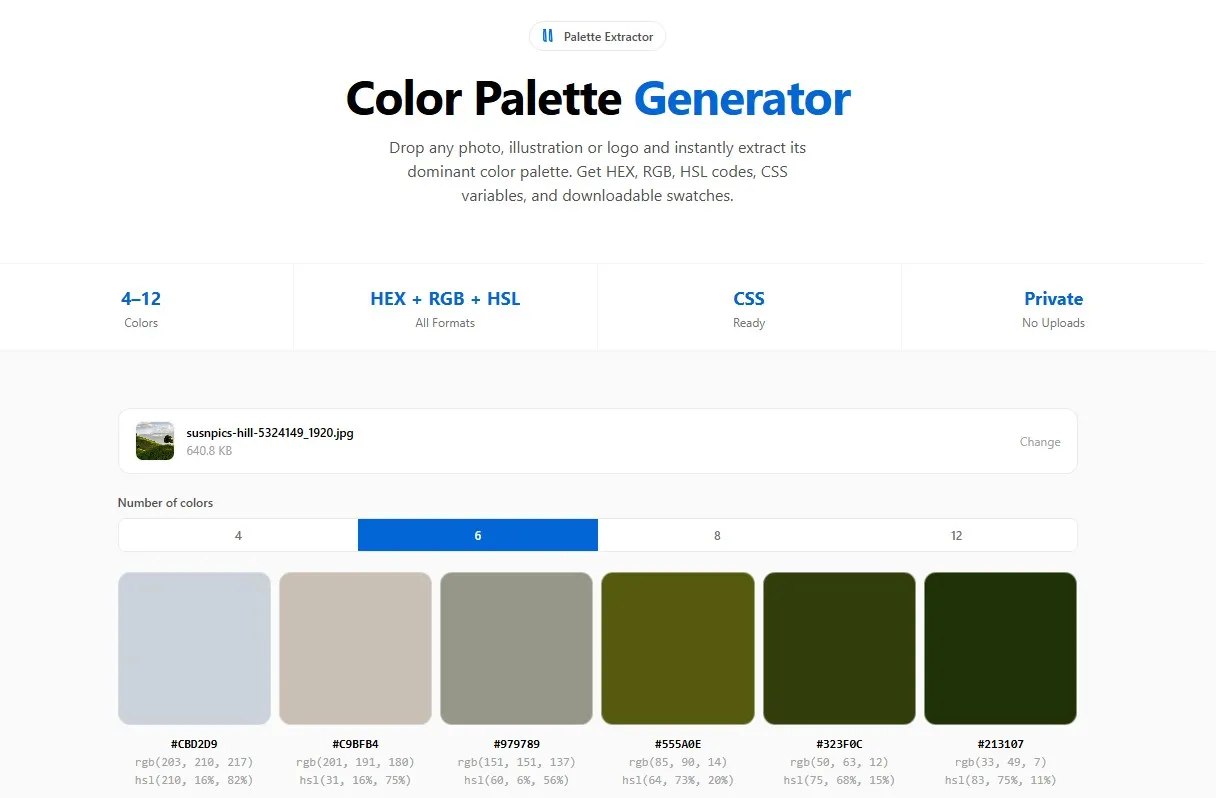
Go to the color palette generator and drop your image into the upload area, or click to choose a file from your device. It accepts PNG, JPG, WebP, GIF, SVG, and AVIF.
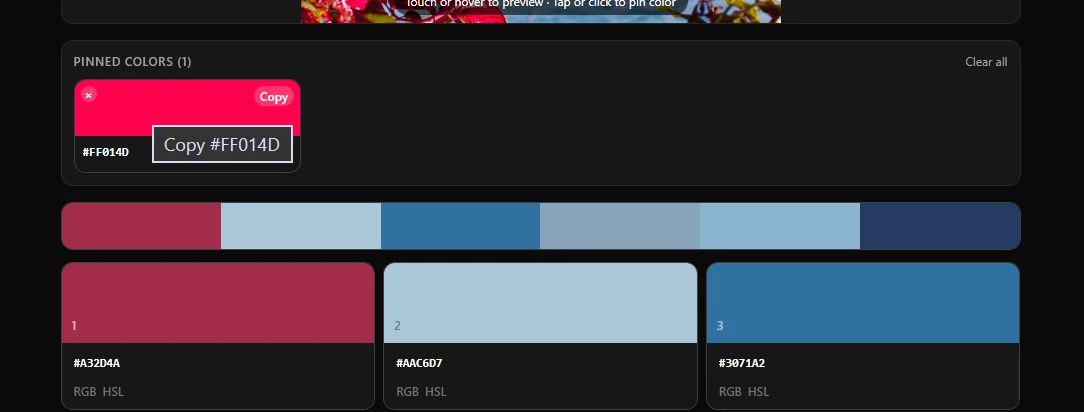
The moment the image loads, the tool automatically extracts a palette using the default setting of six colors, sorted from lightest to darkest by perceived luminance. You'll see the swatches appear as a grid, each with its HEX code front and center and RGB and HSL underneath.
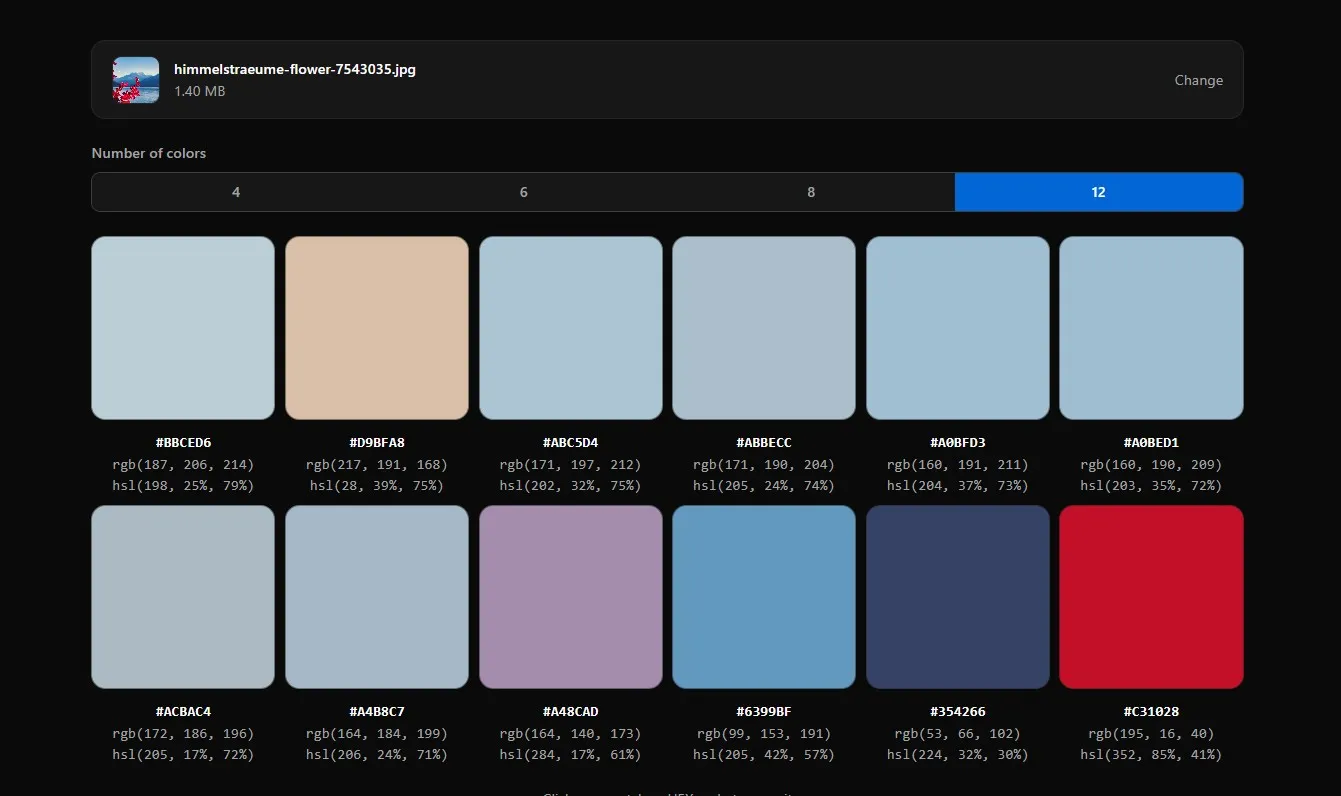
If six colors doesn't feel right for what you're working on, use the color count selector to switch between 4, 6, 8, or 12. The palette regenerates instantly, no need to re-upload anything. Four works well for a simple logo or flat graphic. Twelve suits a busy photo with a wide range of distinct hues, like a festival shot or a detailed illustration.
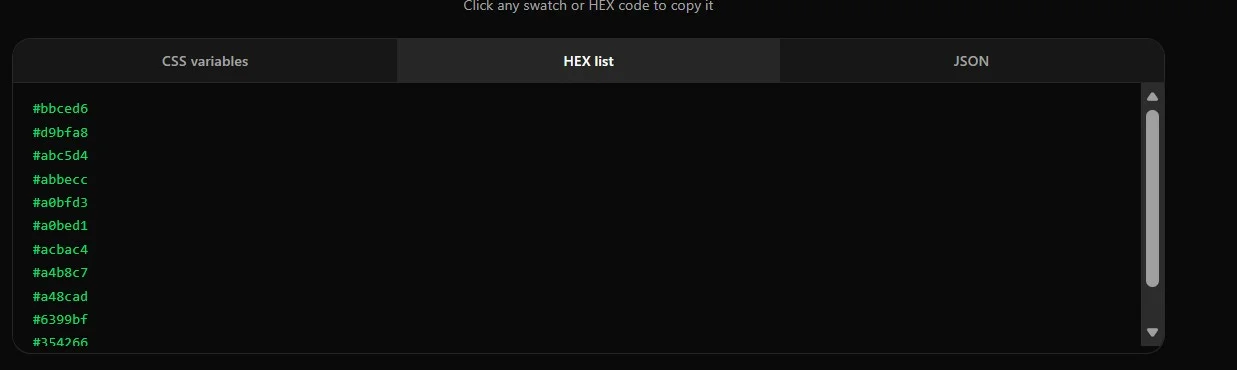
To copy any single color, click its swatch or its HEX code directly. For getting the whole palette out at once, the export panel gives you three formats. CSS variables output a ready-to-paste :root block, and you can set a custom prefix so the variables match your existing naming convention instead of defaulting to --color-1. HEX list gives you a plain list of codes, one per line, for pasting into Figma, Sketch, or Canva. JSON gives you a { "color1": "#...", "color2": "#..." } object, which is what you want if you're feeding the palette into a design token system like Style Dictionary or storing it in a config file.
If you'd rather have a visual reference than code, the "Download PNG swatch" button generates an image with each color block labeled with its HEX and RGB values underneath, ready to drop into a Figma file, a client presentation, or a design spec doc.

How to Pick the Exact Pixel Color
Palette extraction gives you the overall feel of an image, but sometimes you need one specific value, not an average. Say you're trying to match the exact red from a logo's outline, not the red blended with three nearby shades of pink.
Go to the image color picker and upload your image. Hover anywhere over it and a magnifying loupe appears, following your cursor. It shows a zoomed-in view of the exact area under your pointer along with a live color swatch and value, updating in real time as you move. This is the part that makes precision possible: you're not guessing at a pixel, you're watching the exact color update as you get closer to the spot you want.
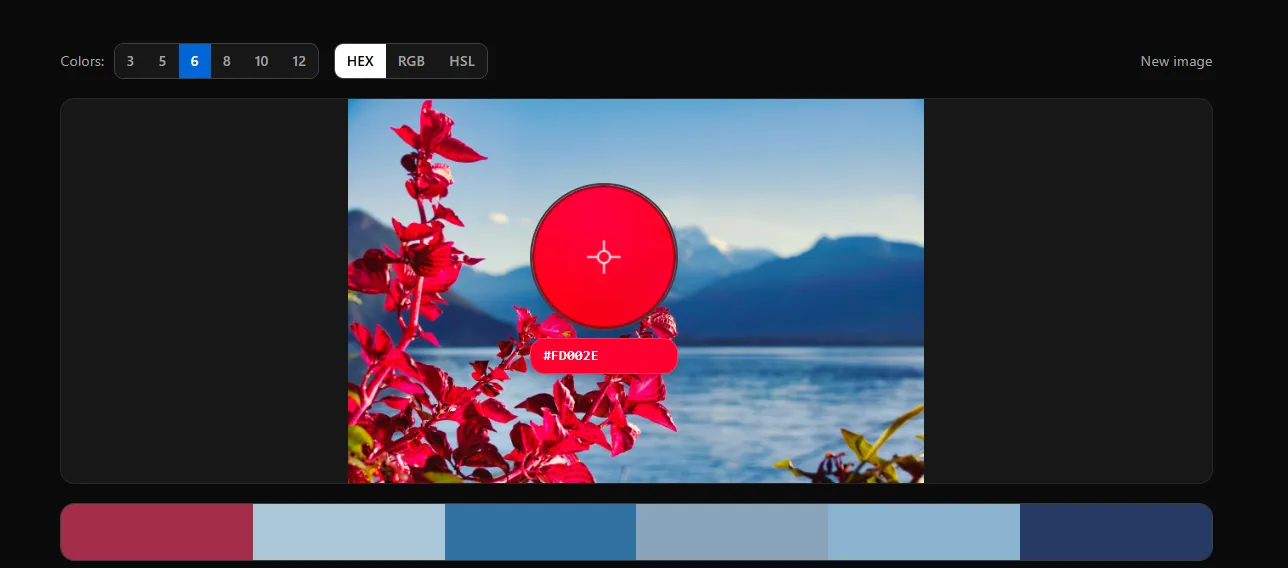
Once you're on the exact pixel you want, click to pin it. Pinned colors collect in a separate row below the image, up to eight at a time, each with its own HEX, RGB, and HSL values ready to copy. Click a pinned swatch again to remove it if you picked the wrong spot.
One thing worth knowing about accuracy: the picker reads pixel data from the image at its full, original resolution, not from a shrunk-down preview. That distinction matters more than it sounds. Plenty of eyedropper tools sample from a downscaled canvas for performance reasons, which quietly blends neighboring pixels together and gives you a color that's close but not exact. If your final output needs to match a source file precisely, down to the pixel, that difference is the whole ballgame.
HEX vs RGB vs HSL Explained
Every extracted color shows up in three formats, and picking the right one depends entirely on where the color is going.
HEX is a six-digit code like #2D4A8C, and it's the format you'll use almost everywhere in web development. CSS, HTML, design tools like Figma and Sketch, and most style guides default to HEX because it's compact and unambiguous. If you're not sure which format to grab, HEX is the safe default.
RGB expresses a color as three numbers, one each for red, green, and blue, ranging from 0 to 255. Something like rgb(45, 74, 139). This format is useful when you're working in code that needs to manipulate individual color channels, such as adjusting brightness or blending two colors together programmatically, since each channel is exposed as a separate value you can do math on.
HSL stands for hue, saturation, and lightness, and it's the format that maps most closely to how humans actually think about color. Hue is the position on the color wheel from 0 to 360 degrees, saturation is how vivid or muted the color is, and lightness is how close it sits to black or white. HSL is genuinely useful when you want to build a set of related colors, like five shades of the same blue for hover states and disabled buttons, because you can lock the hue and saturation and just adjust the lightness number.
None of these formats change what color you're actually looking at. A HEX code and its RGB equivalent describe the identical color, just written differently. The choice comes down to which one your specific tool or codebase expects, which is exactly why both ImgTweak color tools show all three side by side instead of forcing you to convert manually.
How Many Colors Should You Extract?
This depends entirely on what the image looks like and what you're using the palette for, and getting it wrong in either direction produces a noticeably worse result.
For a logo, an icon, or any graphic with a small number of flat color regions, four colors is almost always the right call. Ask for twelve out of a three-color logo and the extra slots get filled with near-duplicate shades caused by anti-aliasing at the edges of shapes, which just adds clutter without adding information.
For a photograph, especially one with a lot of natural variation like a landscape, a crowd scene, or textured fabric, six to eight colors captures the range much better. A photo compressed down to four colors tends to lose the secondary tones that actually give it character, like the muted highlight colors in a sky or the shadow tones in foliage.
Reach for twelve only when the image has genuinely wide color variation, festival photography, detailed illustrations, or busy design mockups being the clearest examples. A simple way to check if you've got the count right: look at the swatches and see if any two sitting next to each other are close enough that you'd struggle to tell them apart at a glance. If so, drop down a tier. If the palette feels like it's missing an obviously important color from the image, like a bright accent object against a neutral background, move up a tier instead.
Common Uses of Image Color Pickers
Brand and product designers use extraction to pull exact colors from a logo file, a packaging photo, or a product render, turning it into a usable palette for a style guide without needing the original design file.
Web developers extract colors from a client-supplied screenshot or brand reference image, then copy the CSS variables or JSON straight into a project, skipping the manual sampling and reformatting that usually eats up time early in a build.
Photographers use palette extraction to understand the tonal character of a shot, useful for maintaining a consistent color mood across a series or gallery, or for briefing an editor on the direction a shoot should take.
Interior designers pull palettes from a mood board photo, a fabric swatch, or a paint reference to build a coordinated room scheme before committing to actual paint or material purchases.
Social media creators build a consistent visual identity for their feed by extracting the dominant palette from one key brand photo, then referencing those same HEX codes across every graphic and post that follows.
Print designers extract RGB values from a digital reference before converting the file to CMYK for physical production, a step that catches color mismatches before they turn into an expensive reprint.
Frequently Asked Questions
Is the extracted color exactly what's in the original file, or an approximation? Palette colors are an average of a group of similar pixels, so they represent the dominant tone rather than one exact point. Pixel picking, on the other hand, reads the precise value at the exact spot you click, taken from the image at full resolution.
Does color extraction work with screenshots, not just photos? Yes. Screenshots, scanned documents, illustrations, and SVGs all work the same way as photographs. The only difference is that flat, low-color-count images like screenshots usually need a smaller palette size to avoid near-duplicate swatches.
Can I extract colors from a logo with a transparent background? Yes, both tools ignore fully transparent pixels automatically so they don't get counted as white or black in the extracted colors.
Will this work offline, or does the image get uploaded somewhere? Everything runs locally in your browser using canvas pixel data. Your image is never sent to a server, and you can confirm this yourself by disconnecting from the internet after the page loads. Both tools keep working.
What's the difference between this and just using the eyedropper built into Photoshop or Figma? Not much technically, since both read pixel data the same way. The advantage here is not needing design software installed at all, being able to extract a full palette in one action instead of clicking pixel by pixel, and getting CSS variables or JSON exports built in rather than converting values by hand afterward.
Try Our Free Color Tools
If you've got an image sitting on your device right now that you need colors from, ImgTweak has both tools covered here ready to go. The color palette generator pulls a full dominant palette with CSS, HEX list, and JSON export plus a downloadable PNG swatch sheet. The image color picker lets you hover and click to grab the exact value at any single pixel. No account, no upload, no watermark on the output.
Once you've got your colors sorted, a few related tools round out the workflow. If the image itself needs resizing before it goes anywhere, the image resizer handles exact pixel dimensions. If you're prepping the same photo for social platforms, resize for Instagram covers every format Instagram expects in one pass. And if the file is going on a website afterward, converting it with JPG to WebP and running it through the image compressor keeps your new color-accurate assets from slowing the page down.
Related articles
Best Image Dimensions for E-commerce in 2026
Amazon wants 1,600 to 2,000 pixels square with a pure white background. Here are the exact specs for every major platform and how to build one workflow that covers all of them.
ReadBest Image Format for Websites in 2026
WebP, AVIF, JPEG, PNG, or SVG? The right format depends on the image type, with real file size data and browser support figures for every case.
ReadHow to Resize an Image Without Cropping It
Most resize tools crop your image to force a new aspect ratio. Here are the three real ways to resize without losing any content.
Read